
It has come to our attention that our latest release will impact a handful of users who currently use Chrome as their primary browser. If you have any issues logging into your T4 account, please clear your cookies and cache. T4 will no longer be accessible from IE 11 after the June 2021 release. Please contact your IT team immediately if you are unable to use Chrome or Edge.
Clearing your Cache and Cookies in Google Chrome
To clear, follow the below steps:
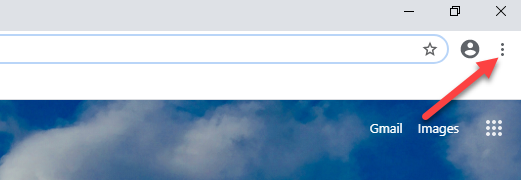
1) Go to the Chrome menu icon and click Settings. This is located at the top right of the page.
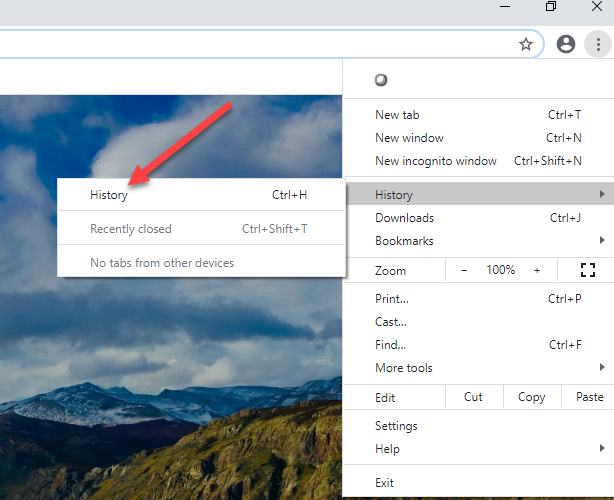
2) Hover over History then select History
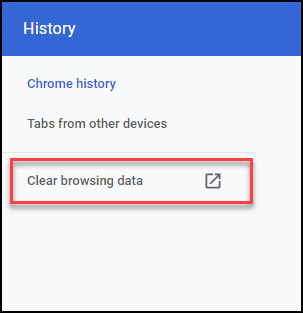
3) Select Clear Browsing History
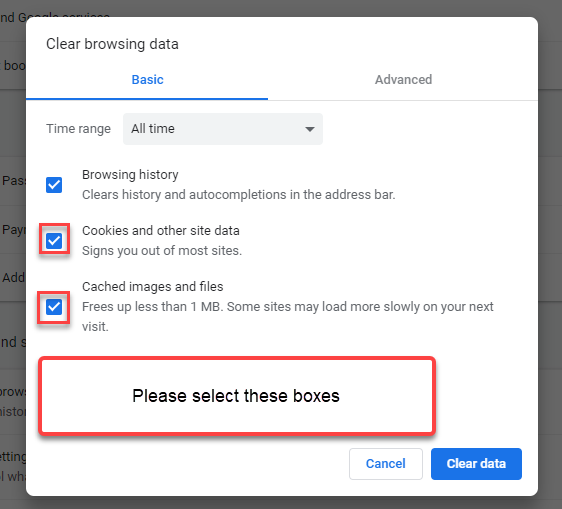
4) When the modal appears, make sure you select the Cookies and other site data and the Cached images and files box
Clearing your Cache and Cookies in Microsoft Edge
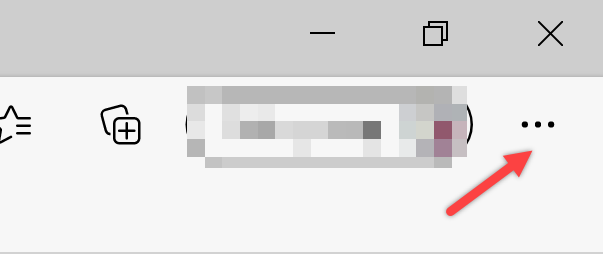
1. Select Settings (three Dots) > Click Settings > Privacy, Search, and Services.
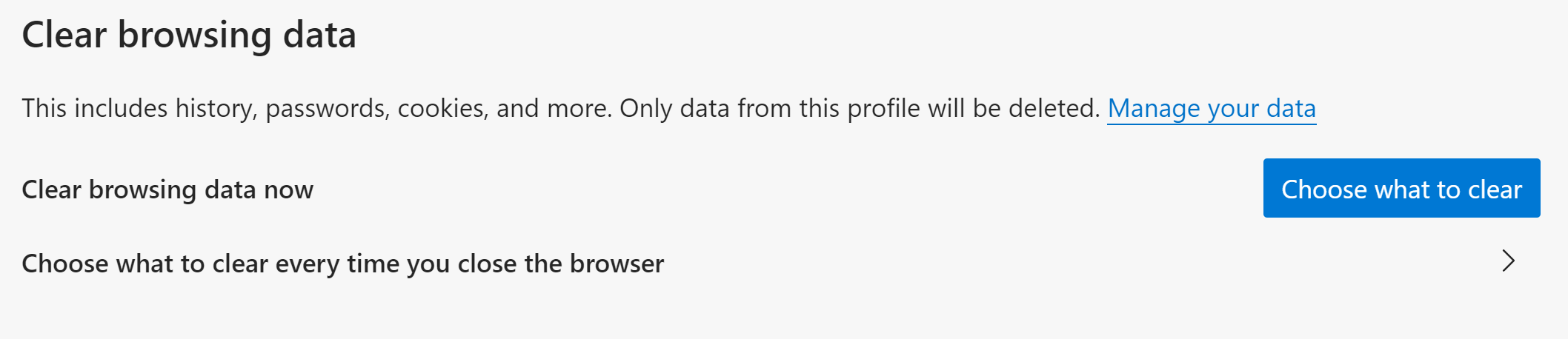
2. Under Clear browsing data, select Choose what to clear.
3. Choose a time range from the Time range drop-down menu.
4. Choose the types of data you want to clear (see the table below for descriptions). For example, you may want to remove browsing history and cookies but keep passwords and form fill data.
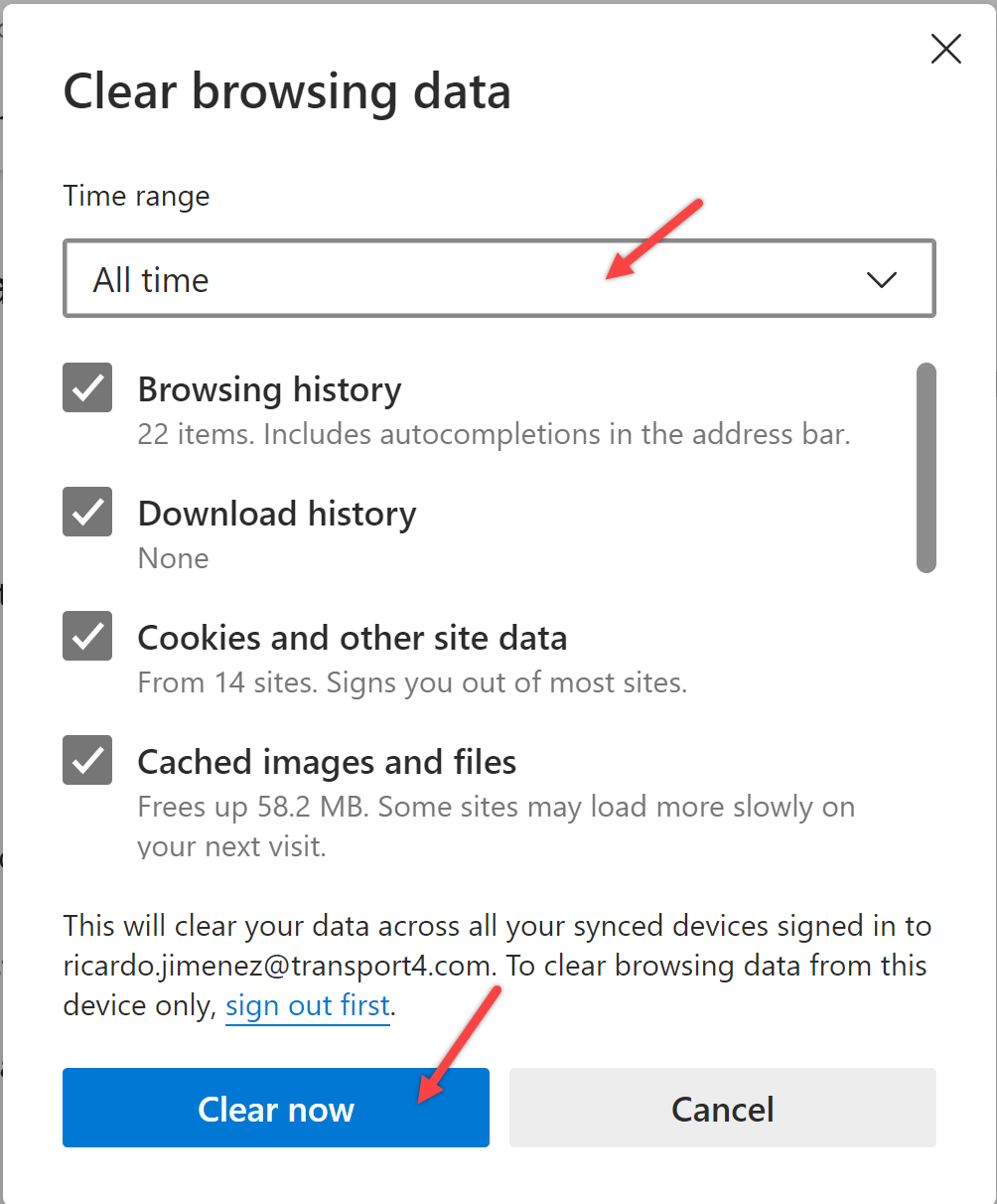
5. Select Clear Now.
If you have questions please reach out to us at info@transport4.com.
Comments
0 comments
Please sign in to leave a comment.