
Quick Start Tutorial
This tutorial is designed to get you up and running quickly using the primary features and functions available in the Premium Shipper Services (PSS) – Admin section.
Step 1: Log into Transport4
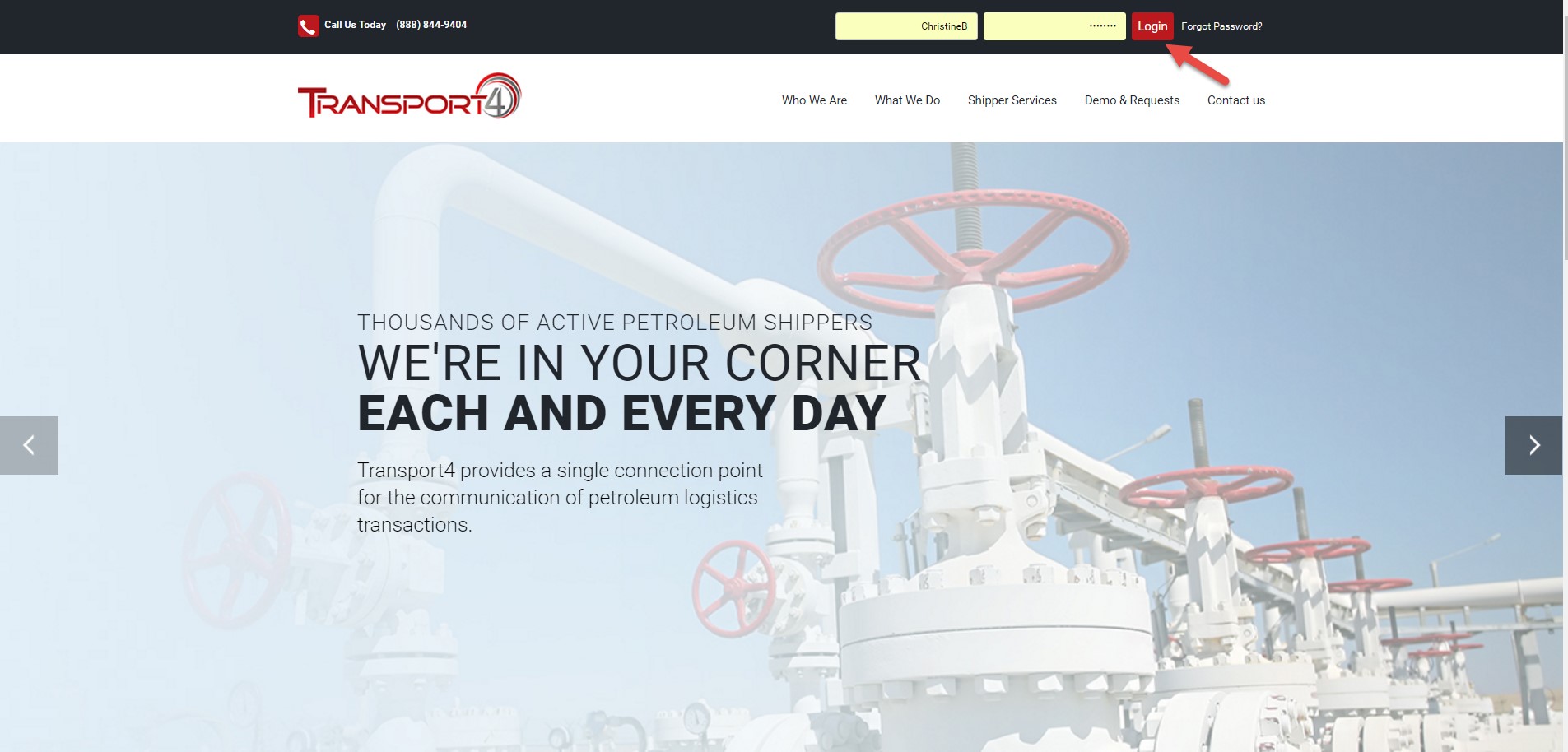
Open your web browser and enter the following URL: https://www.transport4.com
This will direct you to the homepage shown below. Enter your PCA or COA username and password in the upper right-hand corner of the screen. Click “Forgot Password?” if your password has expired, then follow instructions to receive a new password via email.
Step 2: Notification of a Premium Shipper Services Request
You will be notified via email when a user is requesting PSS.

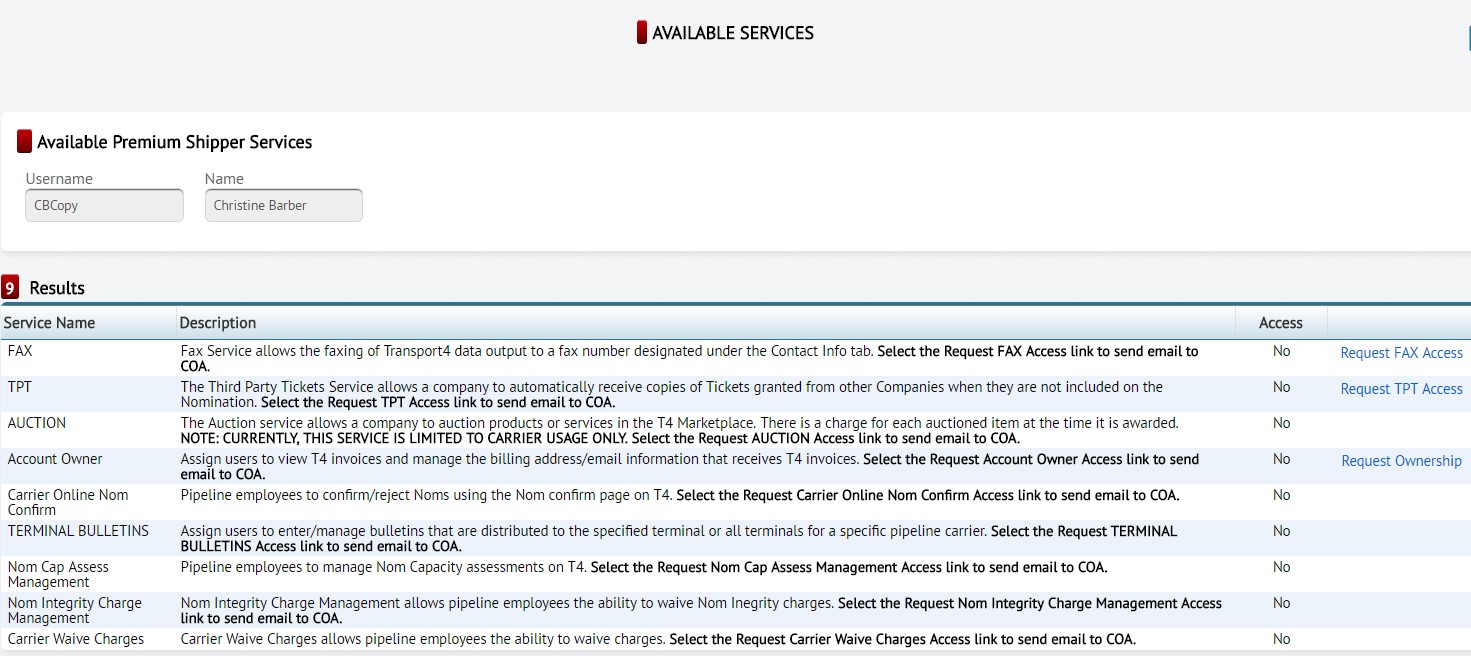
The following is an example of the list of Available Services the user receives based on their T4 credentials.
Step 3: Assigning Premium Shipper Services
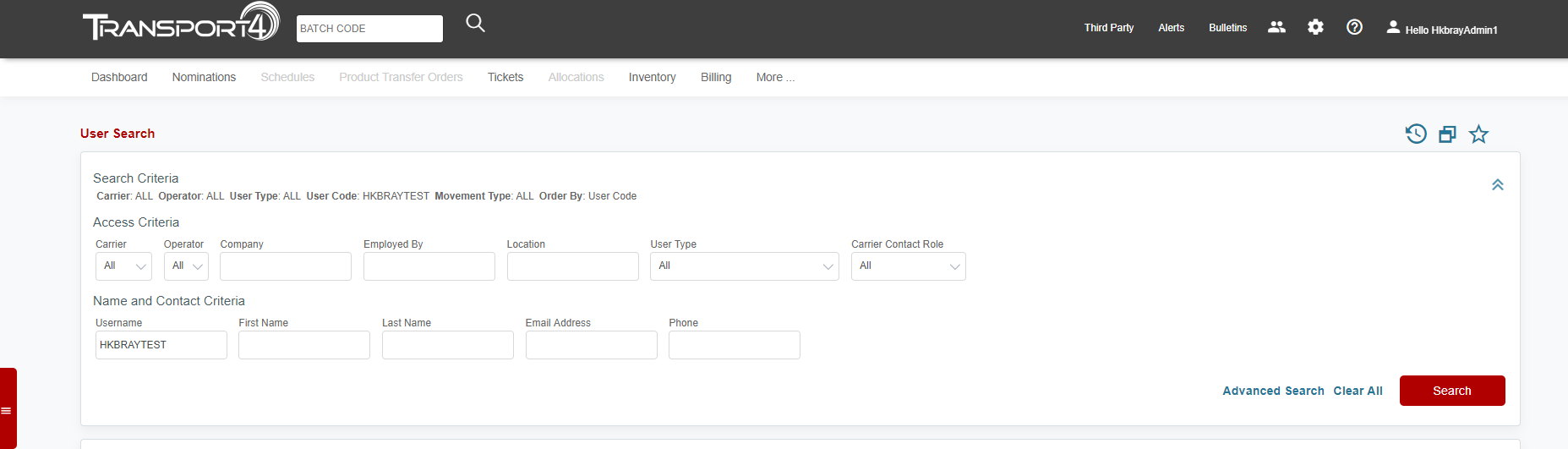
Once logged into T4 you will be on the T4 Dashboard page. Click on Administration and select “User Search”.

Complete the field with as much information as you know and click search.
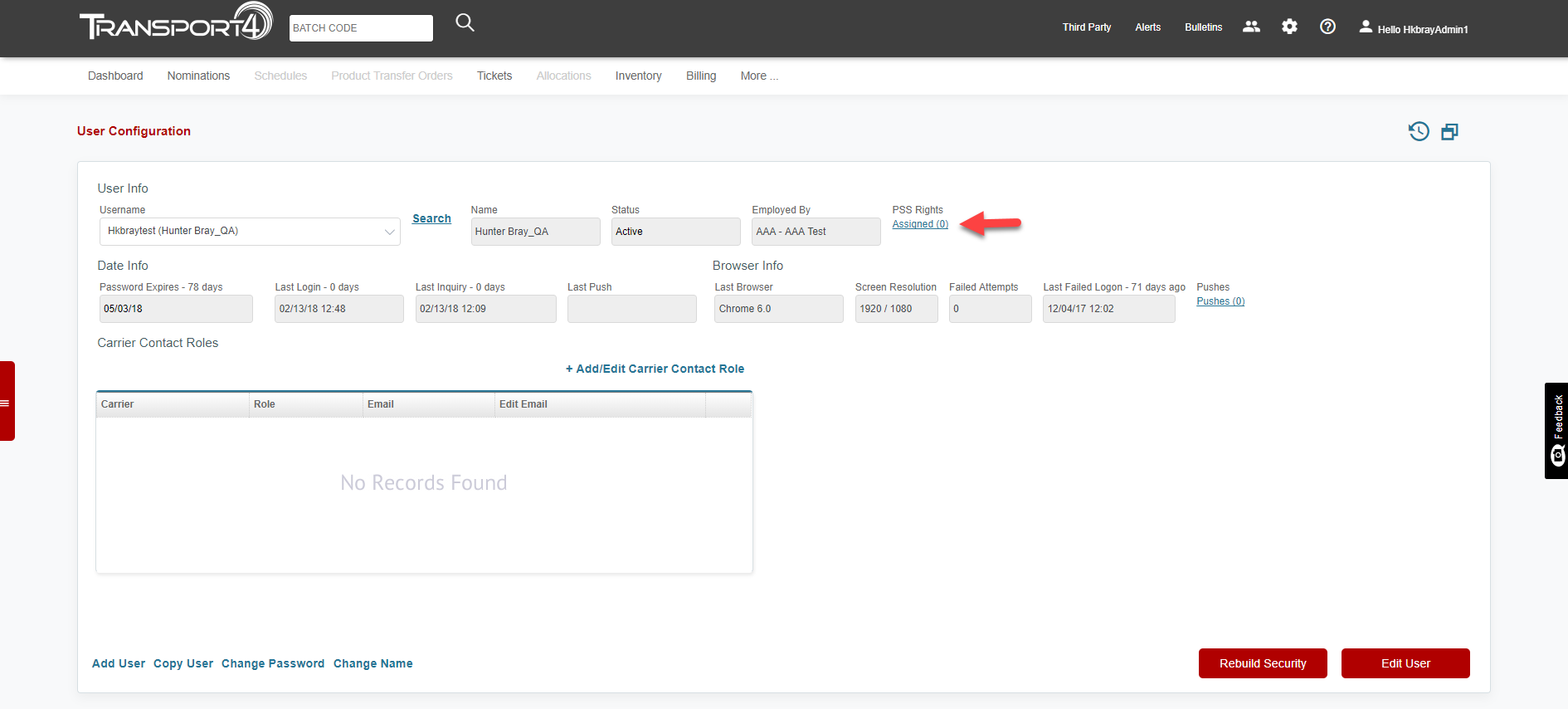
Once you locate the correct user click “Assigned” under PSS rights to add requested access.
The Premium Services window will open so you can select the requested service in the drop-down window. Once you select the correct service, find the correct user and click the right arrow to assign the service to them.
Step 4: Information & Pricing
A detailed explanation of all of the Shipper Services offered by T4 can be found on the Transport4 website homepage.
Step 5: Viewing Invoices
You can view a list of current, past due, and historical statements from the services tab. T4 typically provides only the past 11 months of statements.
- Login to your Admin Account
- Hover over Billing and select T4 Statement of Account
Figure 5.1 – T4 Statement of Account
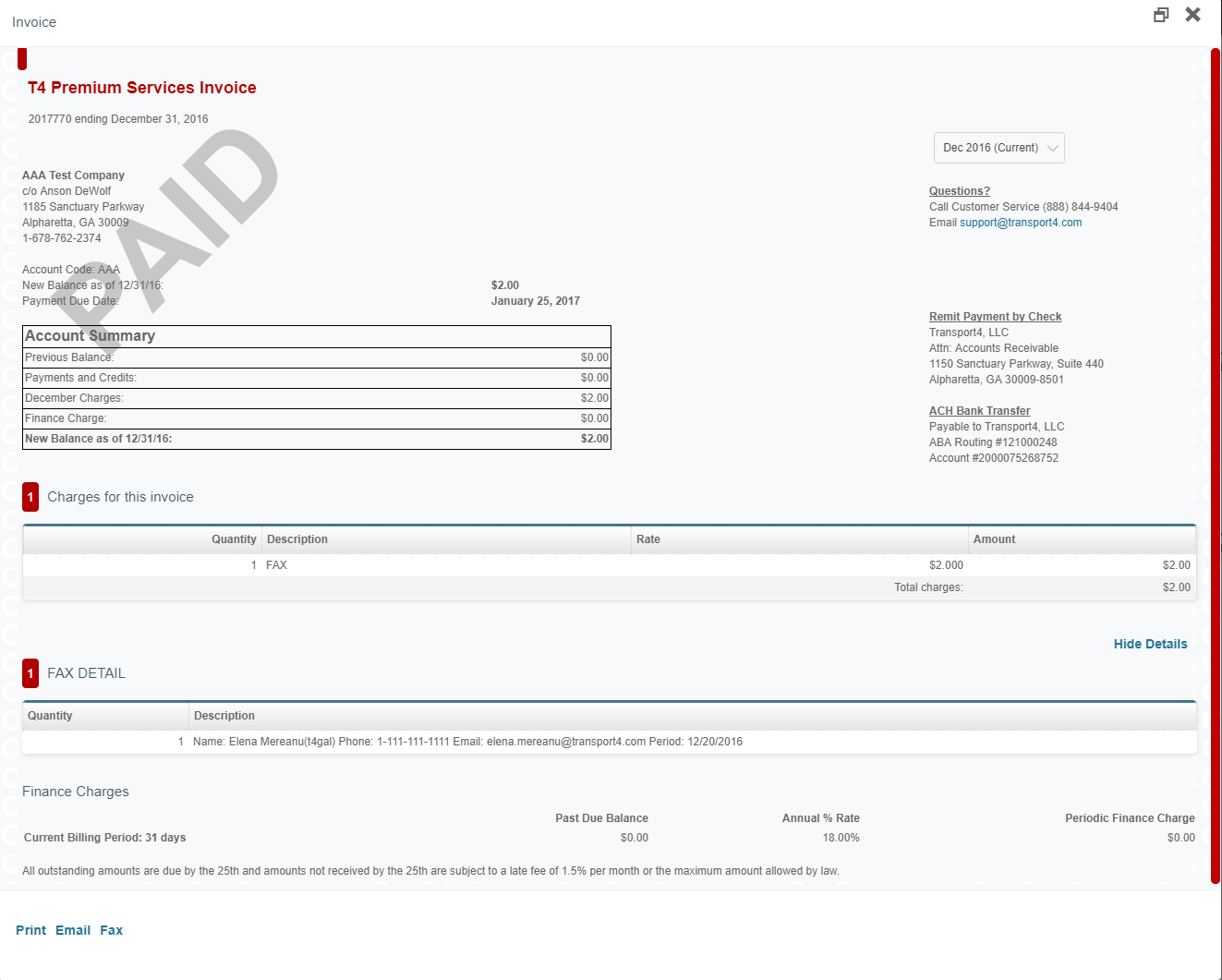
The T4 Statement of Account window will open and you will select your company in the drop-down window and the invoice number you would like to review.
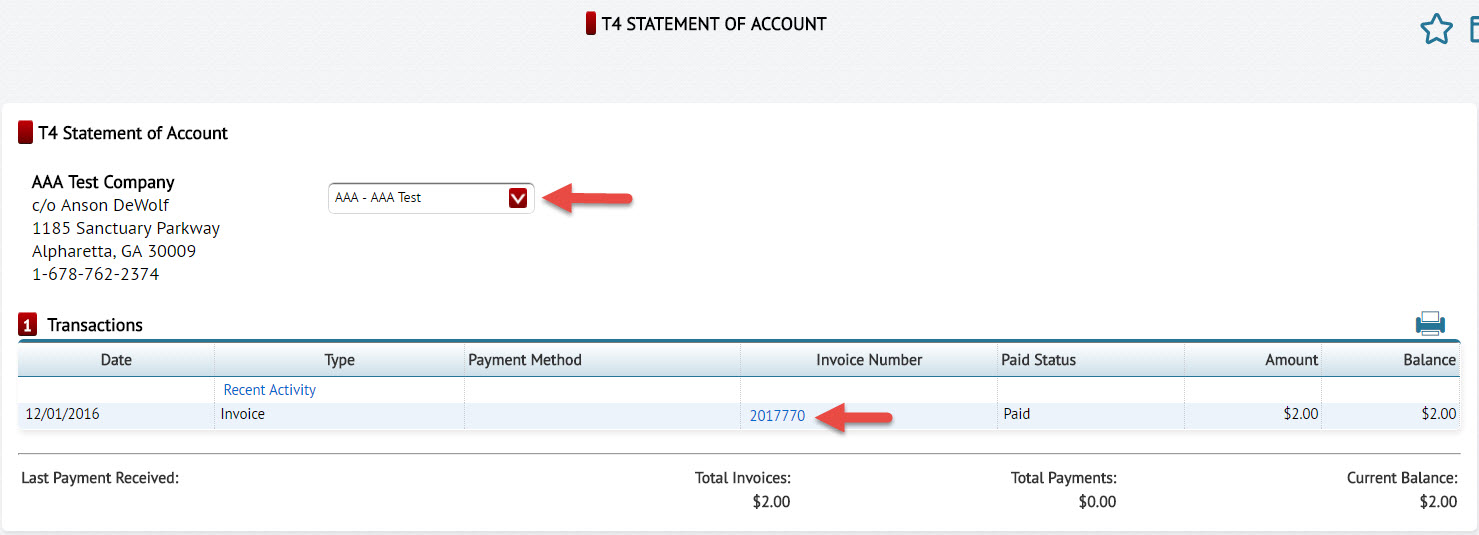
Figure 5.2 – Invoice
Comments
0 comments
Please sign in to leave a comment.