
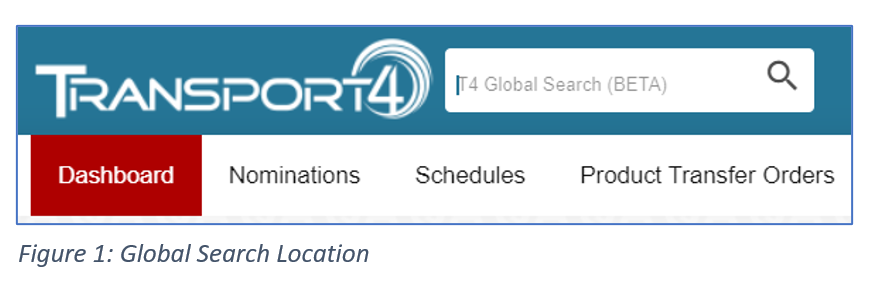
The New Global Search feature will allow users to be able to use keywords to search for a Batch Code, Nomination event, Location, Schedule, among others, and T4 will return dynamic, actionable results. This Global Search feature is located on the top left corner of every T4 screen (See Figure 1). Users will have access to details for a specific Batch, or even nom maintenance activities such as Edit or Copy Nomination - all directly from the search bar.
Please note, this feature is still in BETA Mode and we are continuously working to refine it.
Global Search Features Include:
- Search Nominations, Schedules, and Tickets simply by entering pieces of the Batch code
- Returns the most relevant data to your search
- Easily see events associated with the searched content
- Quick access to Nominations so they can be changed (Edit & Copy)
Searching Data
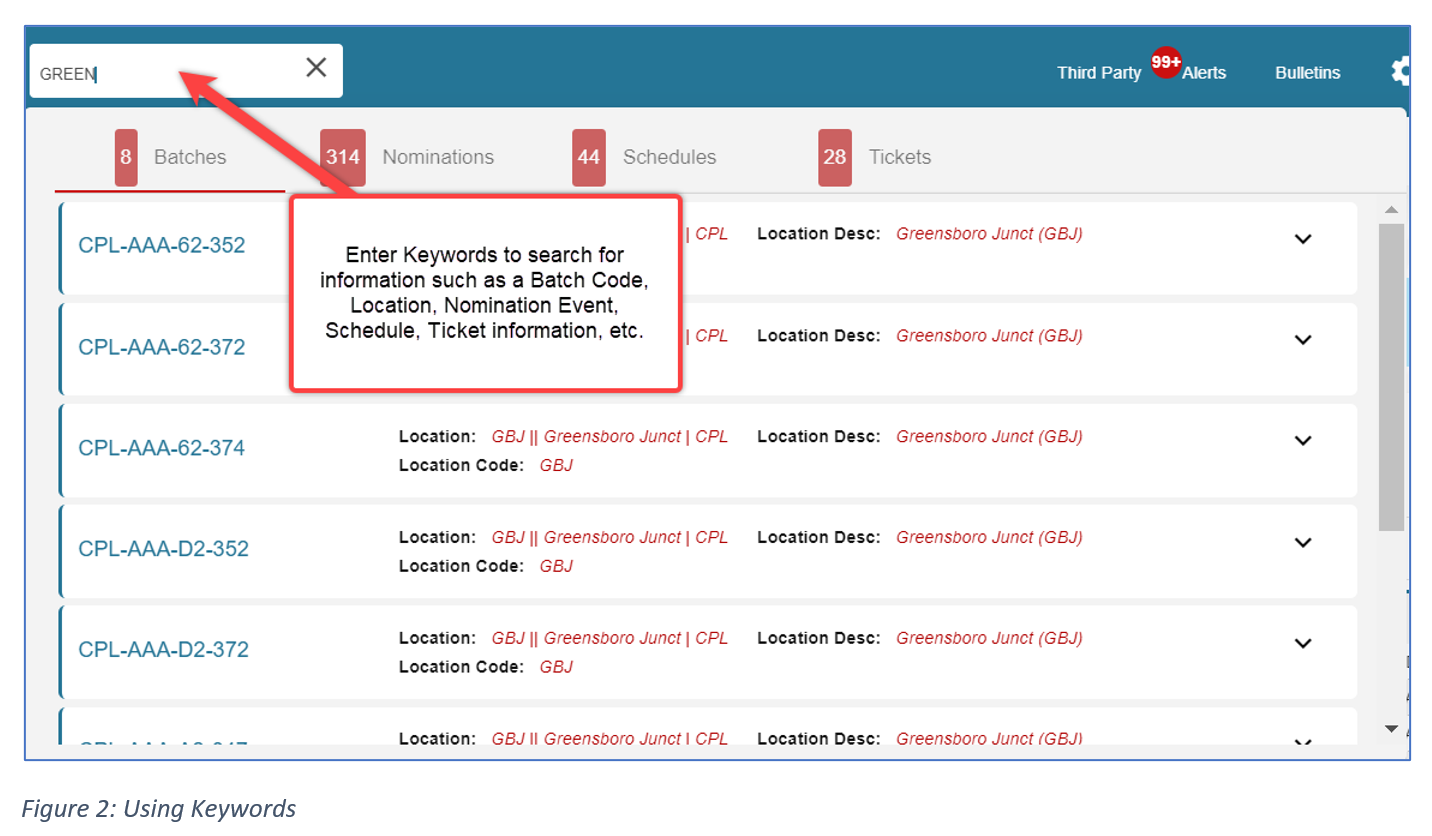
Enter Keyword in Global Search bar on the top left corner such as (Batch Code, Location, Nomination events, Schedule Events, Ticket information).
*Please note, you cannot search by Volume.
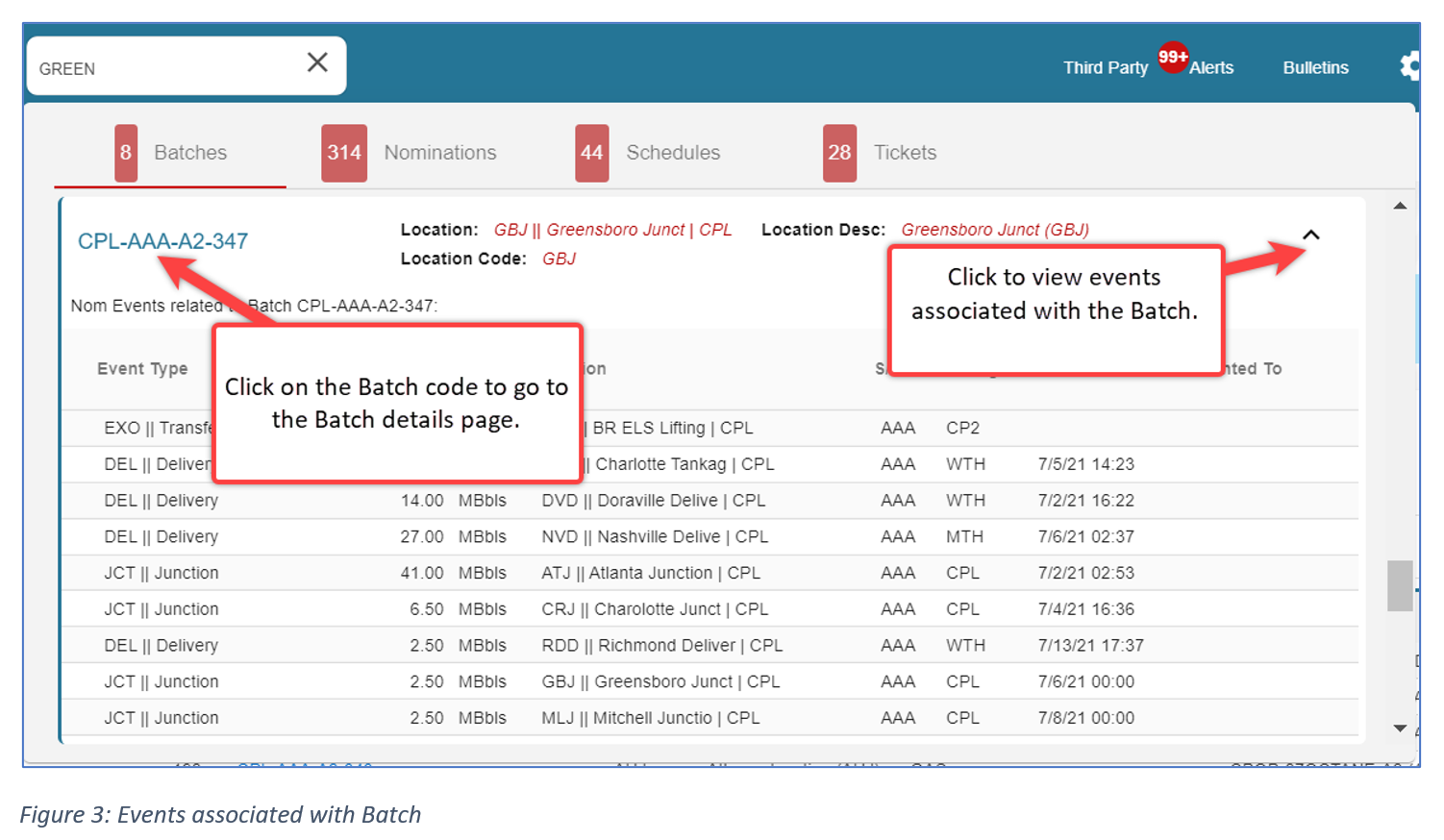
Clicking on the drop-down arrow next to the Batch will allow you to see the events associated with the Batch. (Figure 3)
Batch Details Page
Clicking the Batch Code hyperlink navigates the user to the Batch details page from this screen, you can:
- You can Print, View Search History or open the current page in a new tab.
- You can also add a New Nomination
- Edit, Copy, View Nomination, or View Nomination History
- You can grant to another party
- Clicking on the hyperlinked Ticket number will take you to the ticket details page.
Nominations Tab
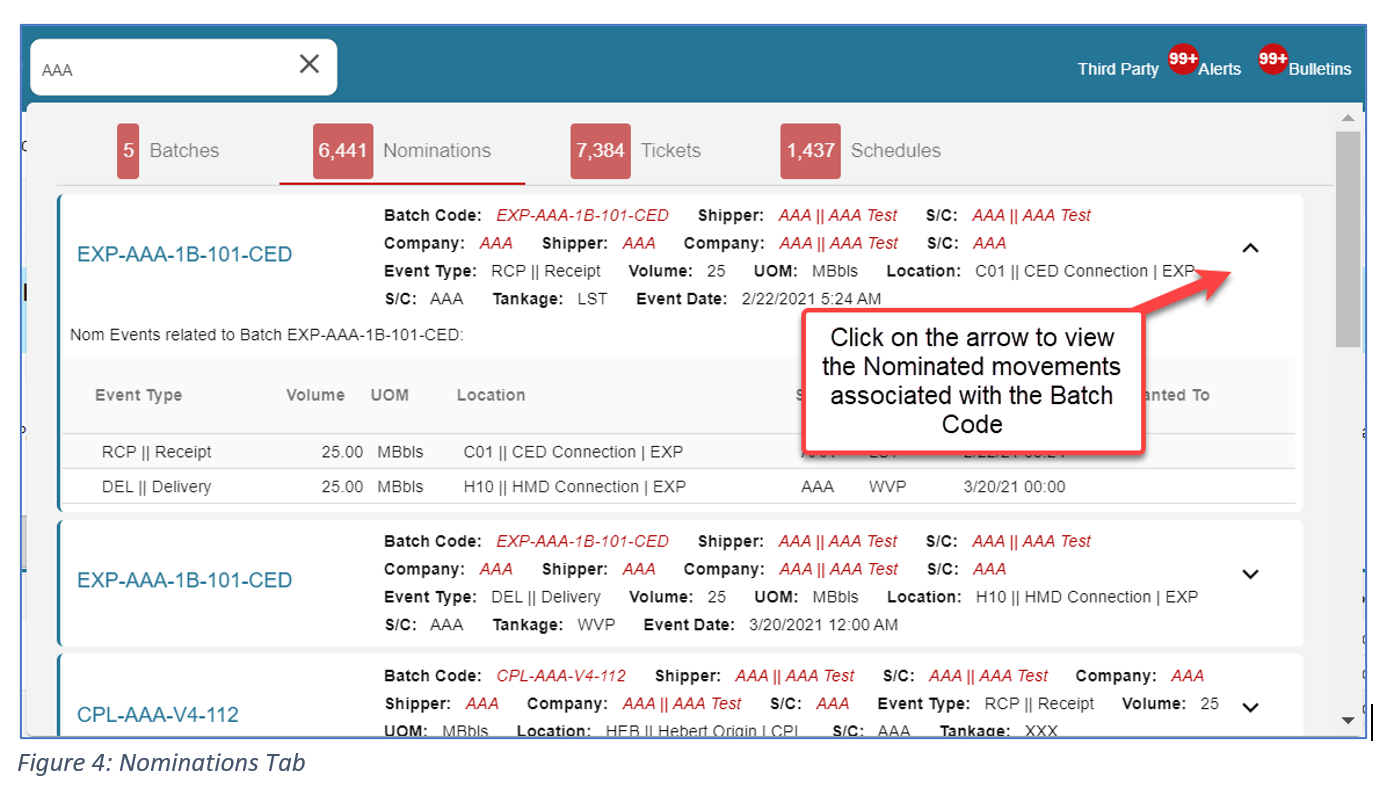
In the Nominations tab, click on the arrow to the right of the Batch Code to view the movements associated with the Batch Code.
Schedules Tab
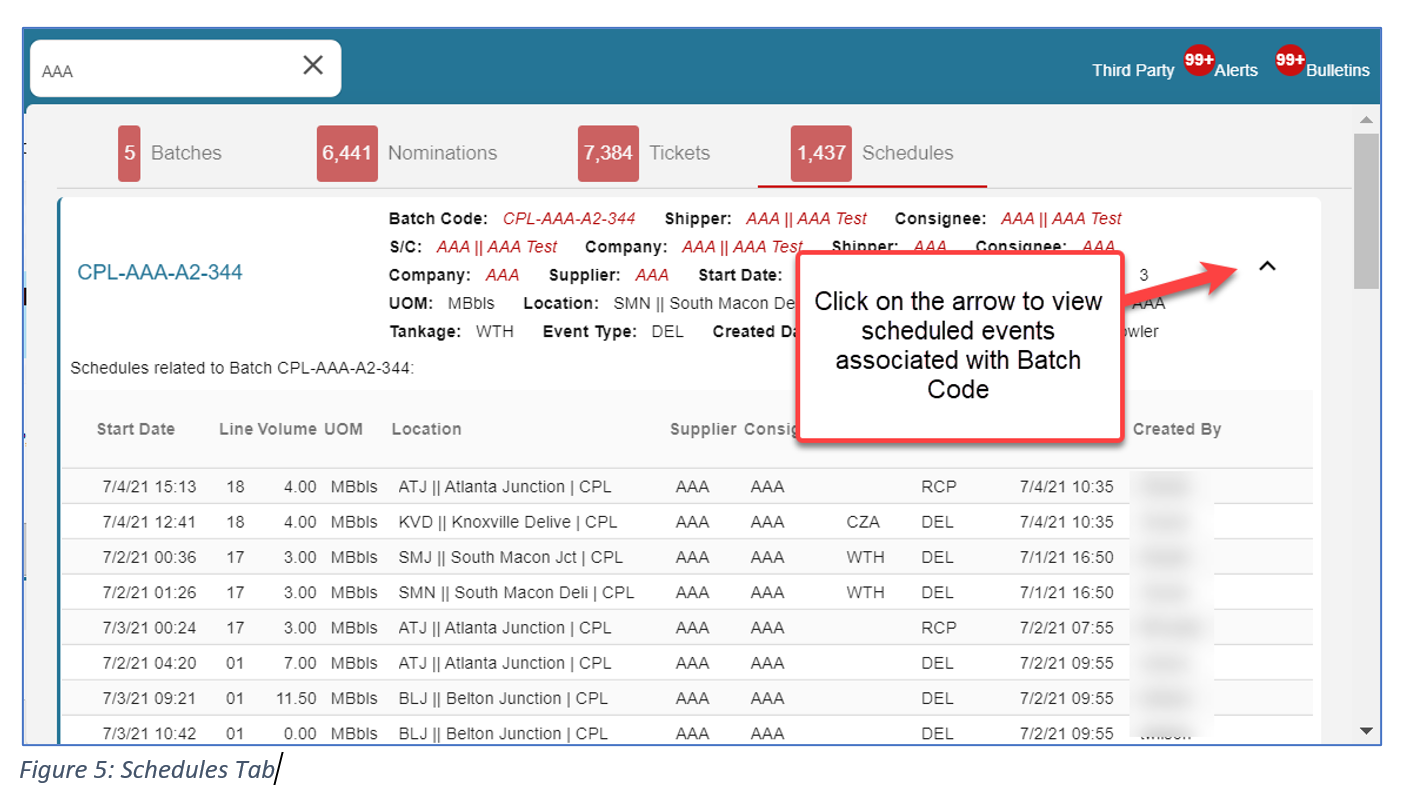
In the Schedules tab, click on the arrow to the right of the Batch Code to view the scheduled events associated with the Batch Code.
Tickets Tab
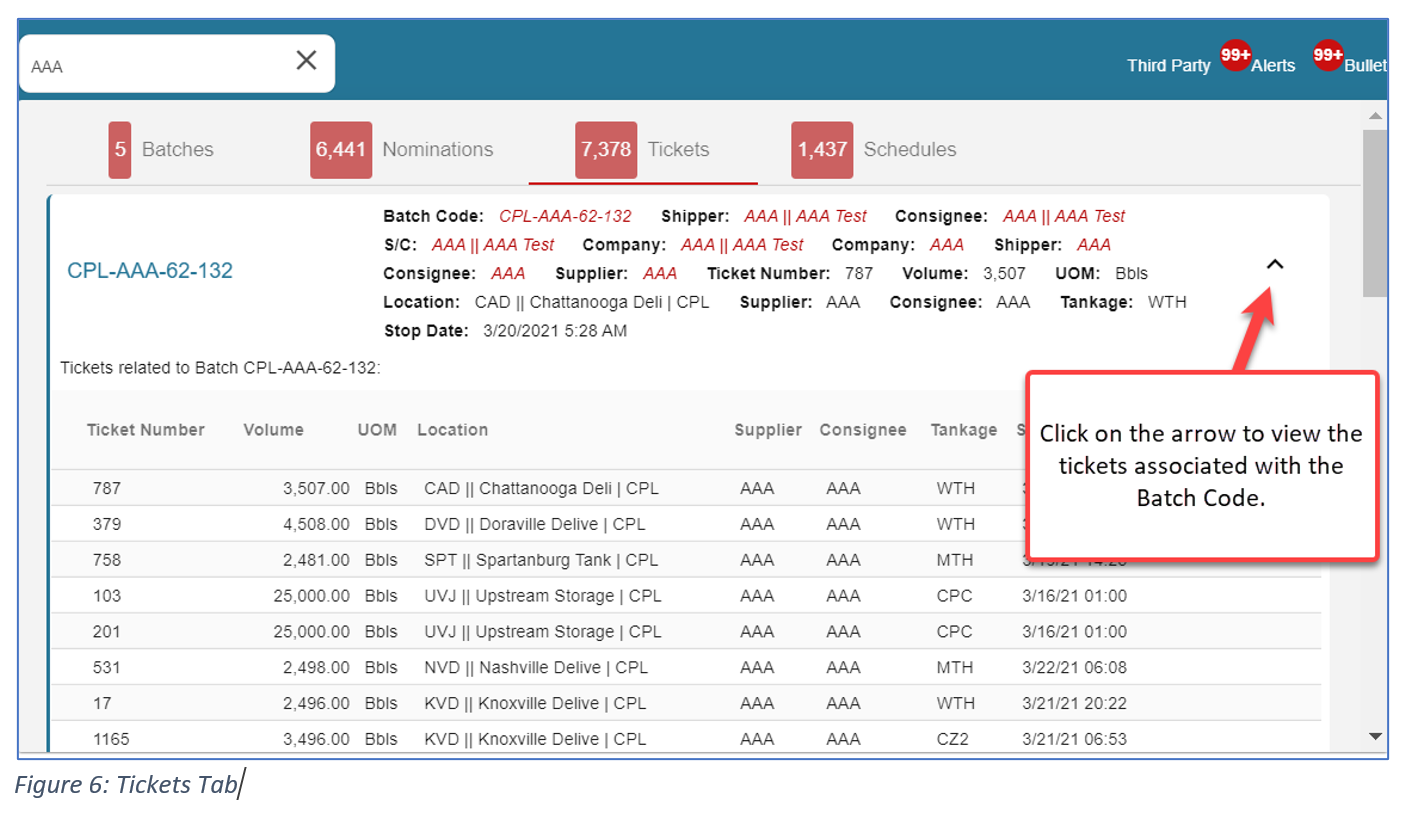
In the Tickets tab, you can view the tickets that are associated with batches. Just click on the down arrow and you will see the tickets associated with the movements (Figure 5).
Want to send us Feedback about the Global Search Feature?
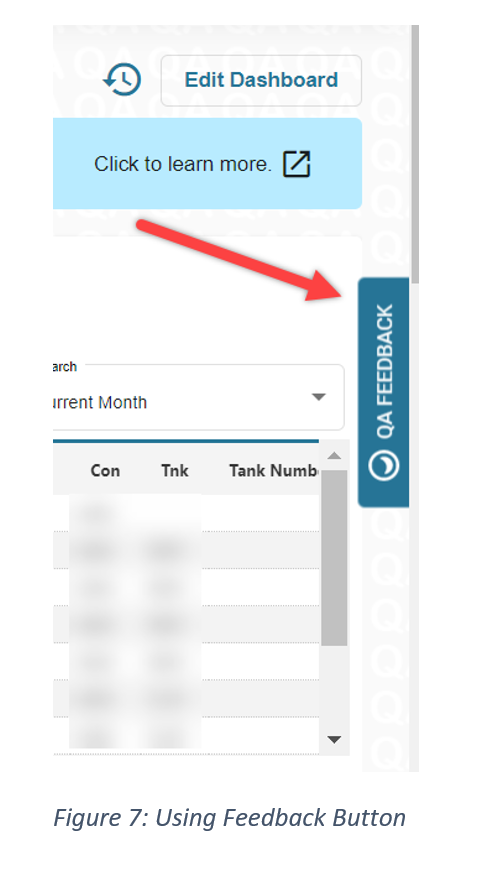
Anytime you have feedback about any of the features in T4 or the Global Search, click on the Feedback Button to provide us with feedback. This feedback will go to our Helpdesk and we will get back to you with an answer to your questions.
Comments
0 comments
Please sign in to leave a comment.