
What is an Alert?
An Alert is a message that requires your attention and requires you to take action. This feature is used to communicate issues such as Auctions, TPTs, Nominations, PTOs, and Requested TPTs. Each carrier has different alert types.
Alert Screen Layout
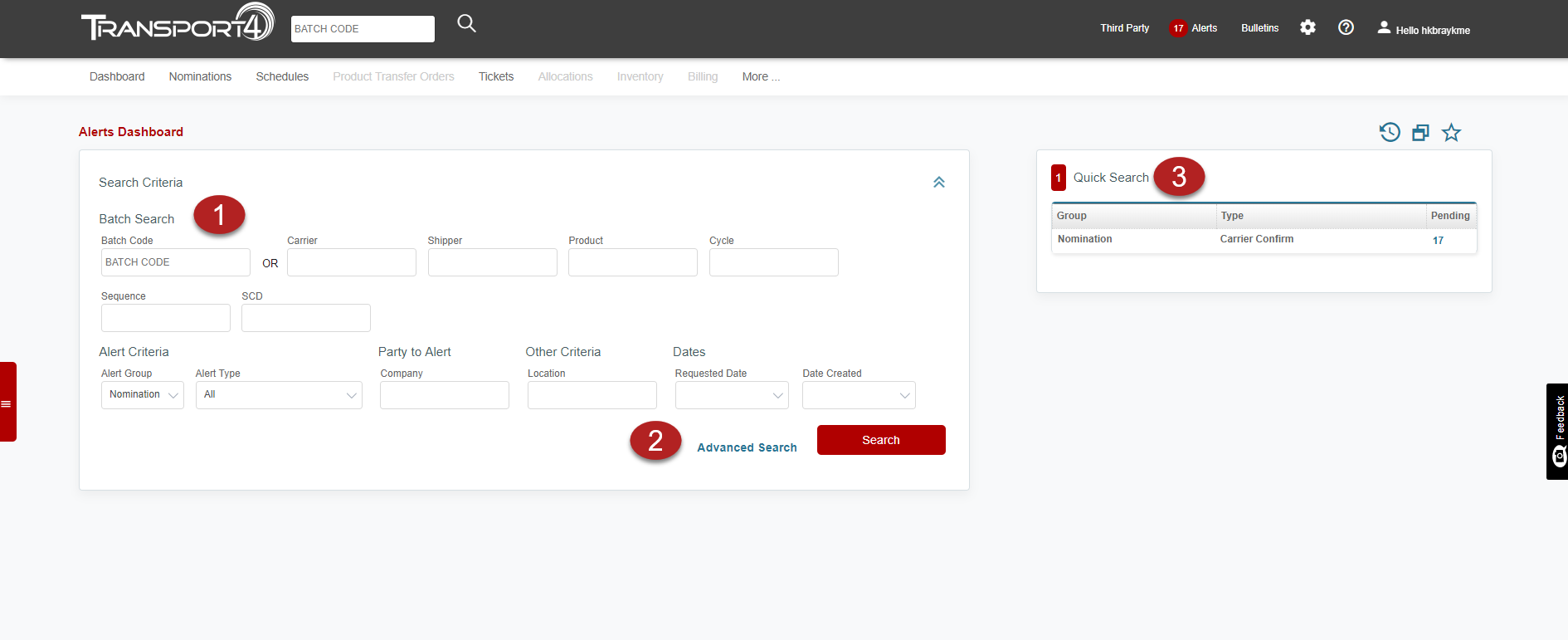
There are two main sections to the Alerts Dashboard. There is the “Search” section and the “Quick Search” section. The “Search” section allows you to search for Alerts that may not be in the “Quick Search” section. The “Quick Search” section shows you Alerts that have been sent to you.
Functionality
Basic Search (1) – You can search for Alerts using a Batch Code or by using the Carrier, Shipper, Product, Cycle, Sequence or SCD information that you have. You can also search by “Alert Criteria”. Choose the “Alert Group” on the drop-down, then the “Alert Type”. If you have the Company, Location, Requested Date, or Date Created, you can also enter this in the search criteria.
Advanced Search (2) – In the “Advanced Search” section, you can also search by Product Type.
Quick Search (3) – This section will hold the Alerts that you have already received. In the screenshot, you will see that there are nine pending Alerts for “Nomination, Confirm or Grant”, 2 pending Alerts for “Nomination, Rejection”, and 2 Alerts for “Granted TPTs, Confirm or Grant”. You can see any of the pending Alerts by clicking on the number under “Pending”.
Alert Results
The Alert Results will vary based on the Alert that was published. The basic categories, with possible actions, are listed below.
-
Auction
-
Granted TPTs – You can Confirm a granted TPT by clicking “Confirm”.
- Nomination
- Confirm or Grant – You can Confirm, Reject, or mark a Nomination as N/A.
-
Carrier Added Batch - You can acknowledge that the Alert has been read.
- PTOs
- Requested TPTs
*Warning! Taking action on an Alert will affect it for everyone that is receiving the Alert*
You have the option at the bottom of the bulletin to email or fax the bulletin. If you click “Email”, the bulletin will be sent to the default email for the user account that you are logged into. If you click “Fax”, the bulletin will be faxed to the default email on the user account.
Comments
0 comments
Please sign in to leave a comment.