
Managing Your Nominations
Shippers can Manage Nominations (Add, Edit, Copy, and Delete)
- Note: Carriers can also manage a shipper's nom but it is not common and if they do, the shipper will receive an alert.
There are several ways to access an exciting nomination
- Find the Batch Code on the T4 Dashboard
- Search for the Nomination in the Nomination Search Screen
- Edit the Nomination from the Batch Details screen
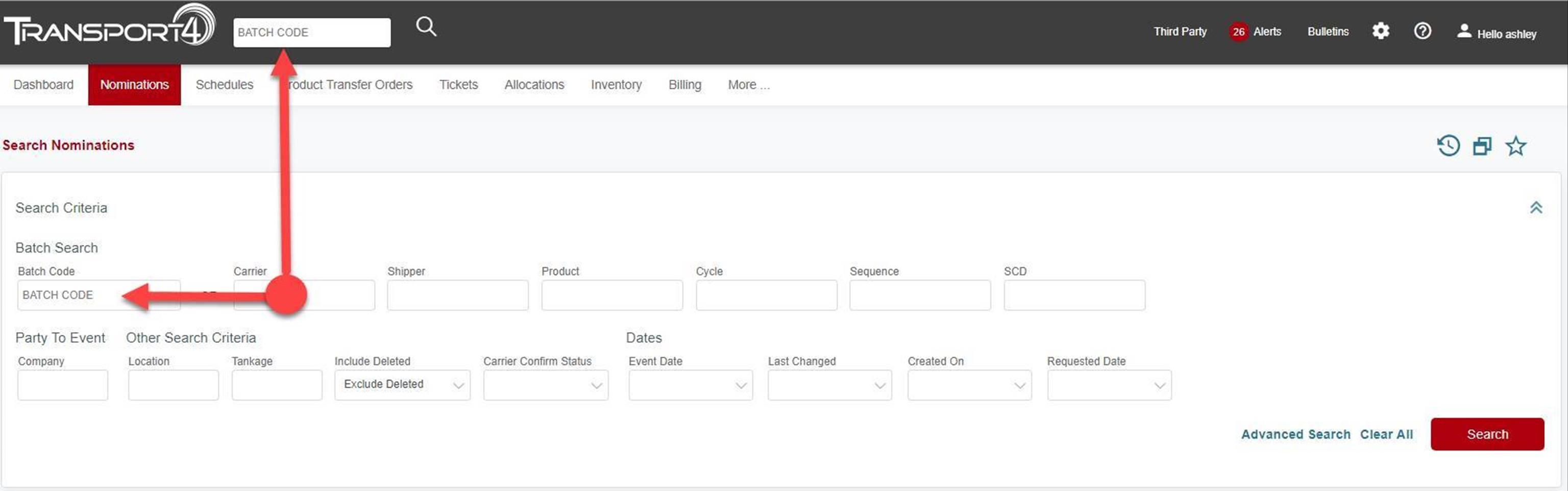
- Accessed from the “Batch Code” or “Global Search” located in the application header
- Clicking on a T4 Batch Code will navigate the user to the Batch Details screen
- From the Terminal Dashboard (Terminal Nominations only)
How to Edit a Nomination
Most screens have a context menu (3-vertical dots or inverted triangles)
The Context Menu allows the shipper to Edit, Copy, & View the nomination. Users can also access the version history from the context menu.
Searching a Nomination
Use the Global Search
Enter the complete Batch Code or as much information as you have and click “Search”. If you do not know the complete Batch Code, enter at least 2 variables and the Top 25 Results will be returned. Clicking on the Batch Code will navigate the user to the Batch Details page.
Use the Context Menu from a Search results
Using the drop-down arrow to edit the Nomination or clicking “Edit” on the Batch Details page will ultimately take you to the Nomination Change page. A pop-up will appear.
After Searching for your Nomination, users can use the context menu or click on the batch code
Using the Context Menu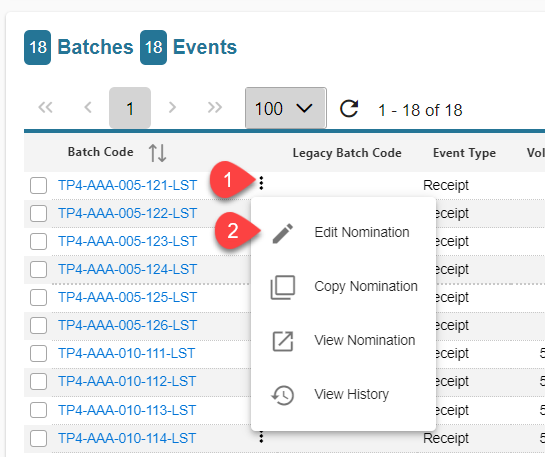
-
- Click on the Context Menu
- Click Edit/Copy/Etc
Click on a batch code to access the Batch Details screen.
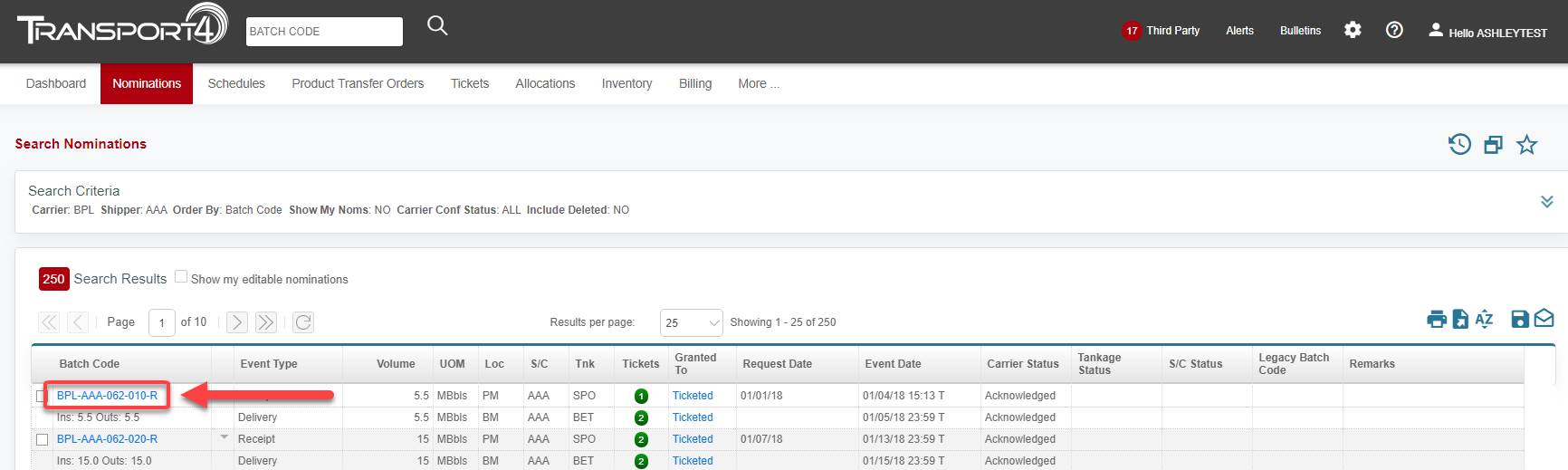
Once you arrive at the Batch Details screen, click Edit toward the bottom of the panel: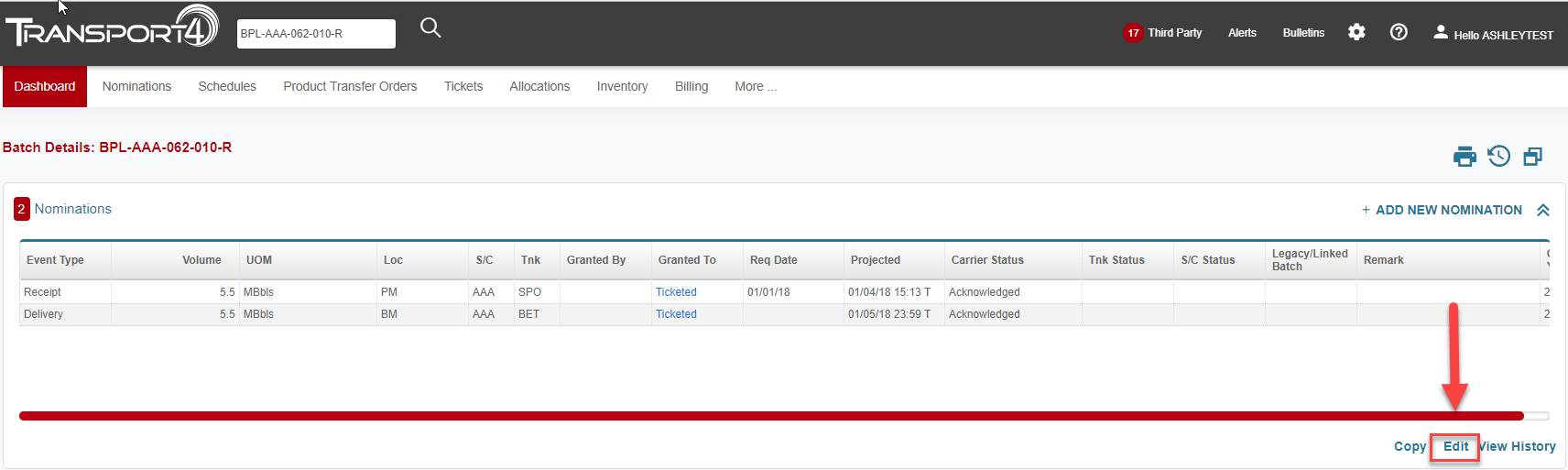
Clicking Edit link will generate a Nomination Change pop-up. The non-editable fields grayed out. All other fields are editable. 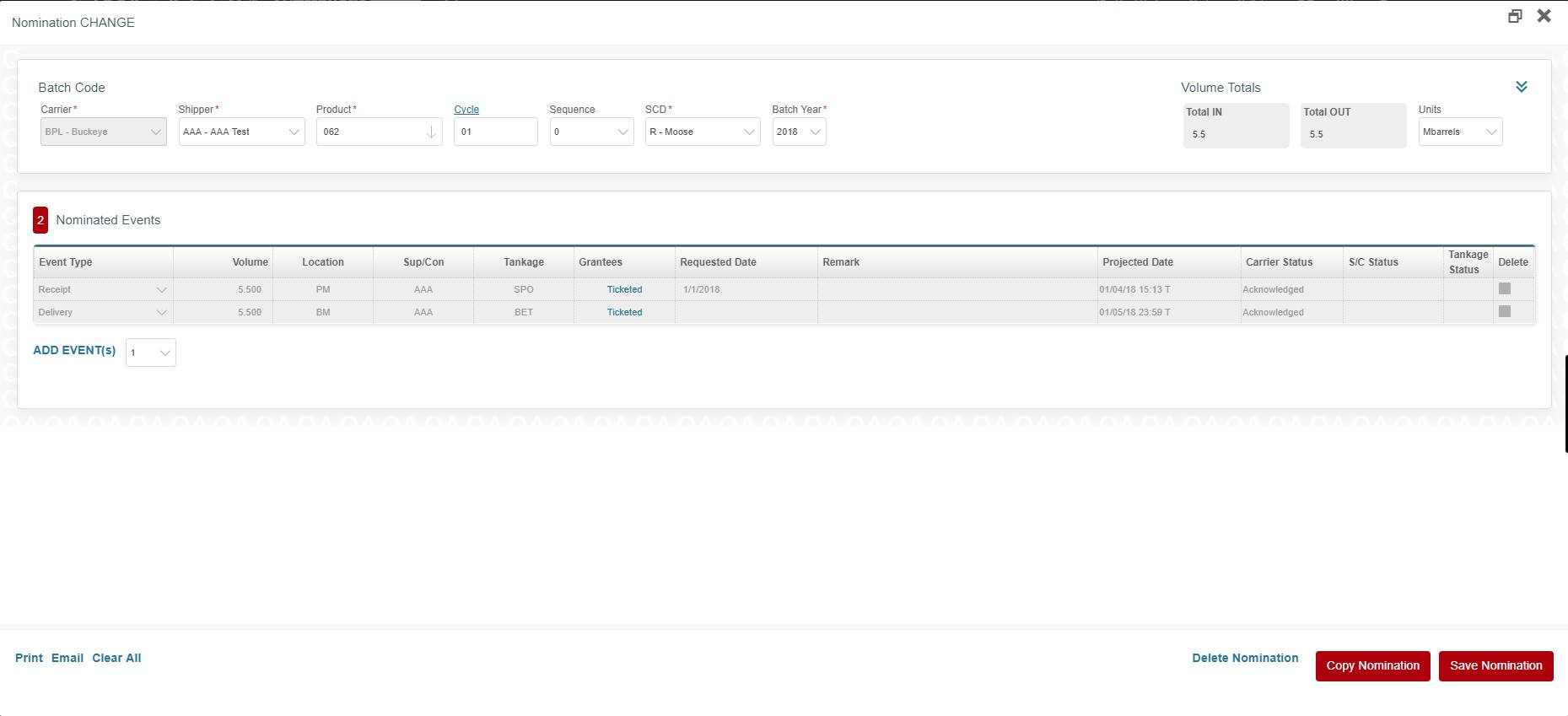
Once edits have been made, click Save Nomination. The edit will be confirmed by a Success indicator.
Deleting a Nomination
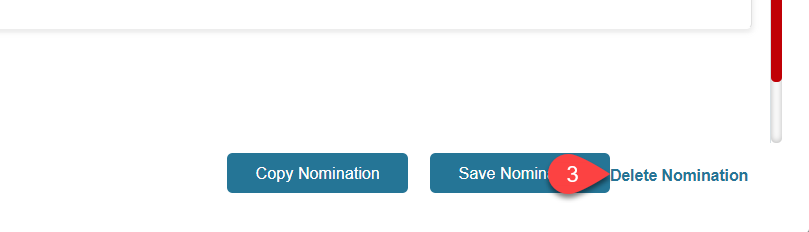
To delete a Nomination, go through same steps as you would to Edit, but select DELETE NOMINATION.
The shipper can delete a Nomination by accessing it from the context menu or Batch Details screen
- Click on the Context Menu
- Select "Edit" Nomination
- Click on the "Delete Nomination" link
To learn How to Copy a Nomination, please click here.
Comments
0 comments
Please sign in to leave a comment.