
The Manage Export page is designed specifically for Controllers to manage customer Nominations. The page will be separated into (2) sections:
Nomination Pending Display: Controllers can confirm, reject or override customer Nominations. Controllers must reconfirm any/all revisions made by the customer. Once a Nomination is confirmed, it will then populate into the Nomination Planning Display.
Nomination Planning Display: Controllers can lock or complete customer Nominations. Locking a Nomination will prevent the customer from making any last-minute changes to the Nomination without authorization from the Controller. Completing the Nomination notates that the move has happened.
Below is a breakout of the Manage Export page:
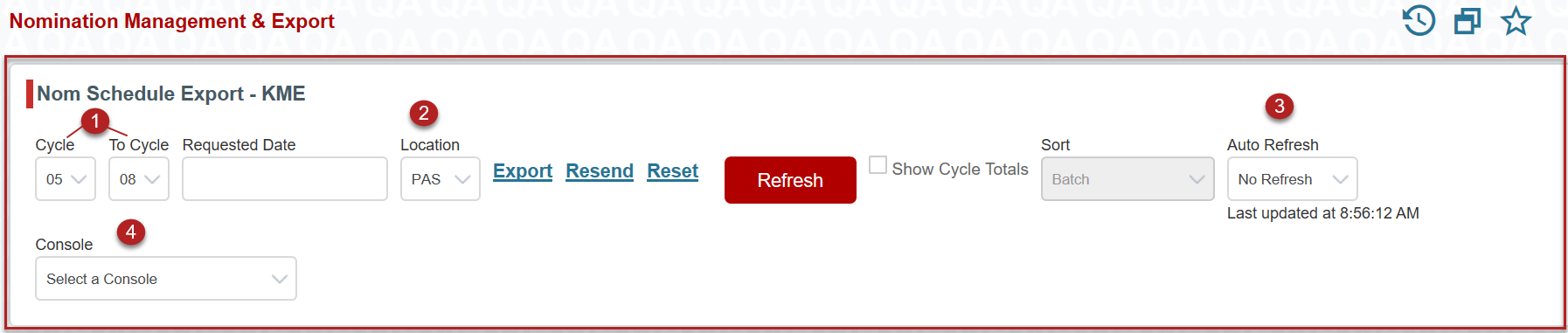
- Cycle - This is the month range of all nominations that have been entered and reviewed
- Location - Dependent on the terminal in which you are located
- Auto Refresh - Refreshes the Pending and Planning Display with the most recent version of nominations. Default is No Refresh
- Console - Allows the user to select a console. A console is a predefined set of SCD's and Pipelines that will auto-populate the Filter Criteria when selected
- You must have the necessary access to add/edit consoles
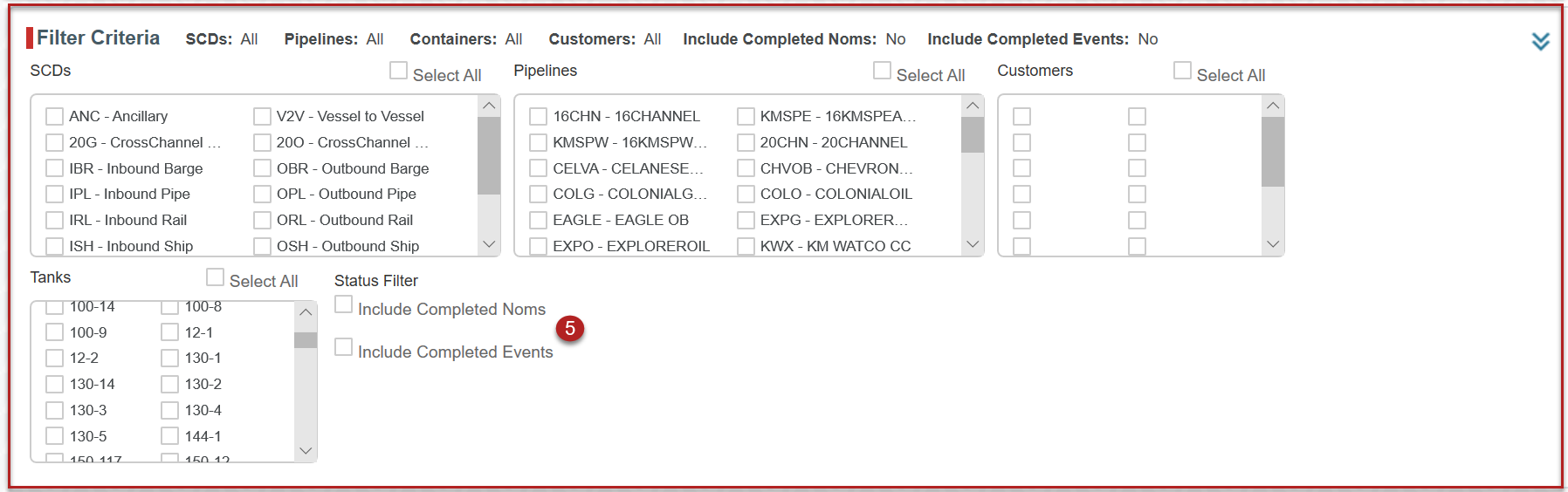
5. Status Filter - Selecting either option will include Completed Noms or Events
*Note: The selections you make in Filter Criteria will remain part of your search criteria. Please make sure the necessary filters have been selected.
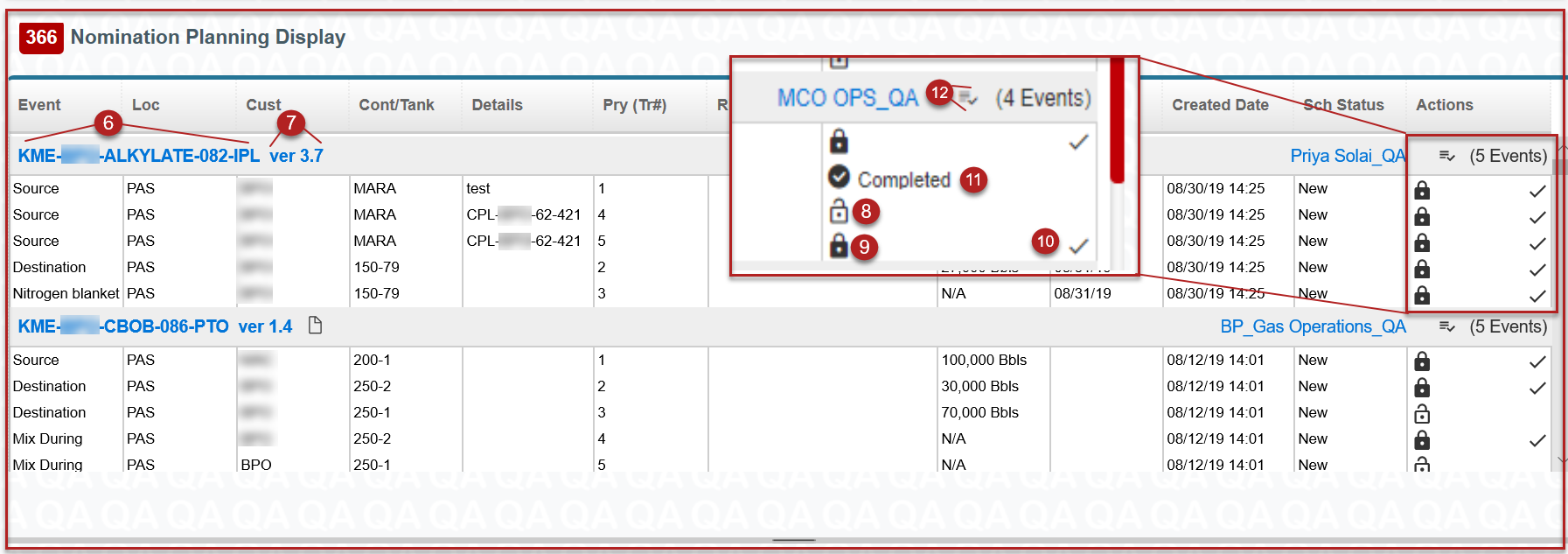
6. Clicking on the Batch Code will open a modal where you are able to make changes to the Nom
7. Selecting the Version Number will open a modal where you are able to view the Nom History
8. All events in the planning display will begin as unlocked. The event must be unlocked for revisions to take place. By clicking on the unlocked icon you will lock the event
9. Once an event is locked, the customer is no longer able to make revisions to the nomination
10. When an event is in the locked position, a checkmark will appear to the right of the page. By clicking on the checkmark you are confirming that you want this event to be marked complete
11. Completed means that the event has been executed. Once an event is marked as completed, you are no longer able to unlock the event
12. The Check All icon will complete all events in that particular batch
*If an event has changed or has been edited in the Planning Display, it will go back to the Pending Display
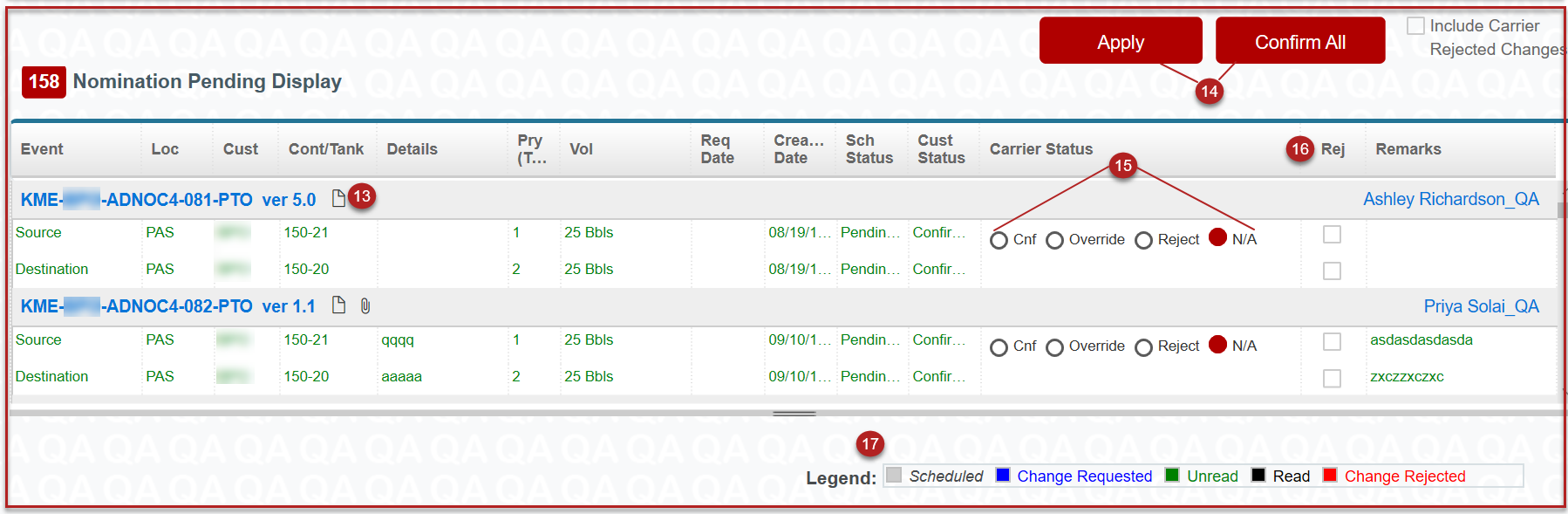
13. The Paper icon notifies the user that there is a batch remark. Hovering over the icon will show the batch remark
14. Apply will save all selections made in the Carrier Status section. Confirm All will automatically confirm all nominations. Once a nomination has been confirmed, it will be sent to the Planning Display
15. Carrier Status gives the Controller the opportunity to Confirm, Override or Reject a nomination. A Controller would use Override when a party on the Nomination has not confirmed a movement but it is known that it will happen
16. Checking the Reject box will reject the Nomination. Please note that a reason for the rejection will need to be added for each rejected event
17. Legend: The Legend will show what color correlates with the status of the nomination.
Red: Rejected Event
Blue: Scheduled or Confirmed Events with changes
Green: Unread
Black: Read
Gray: Scheduled or Confirmed Events without changes
Comments
0 comments
Please sign in to leave a comment.