
The purpose of this document is to explain the Nominations section of www.transport4.com. The steps to find and add Nominations will be covered. There are slight variations between carriers, and the information for each carrier is at the bottom of the document.
What is a Nomination?
A Nomination is a request by the shipper to move product from an origin(s) to a destination(s). These movements are scheduled on specific timeframes called cycles. Along with the origin location (also called receipt) and destination location (also called a delivery), shippers can add the Supplier, Consignee, Tankage, and Third party members to the Nomination. Once the Nomination is accepted by the carrier, it will be scheduled to move.
Searching Nominations
Basic Nominations Search
Hover over “Nominations” from the T4 Dashboard. Then click “Search” or click directly on “Nominations”.
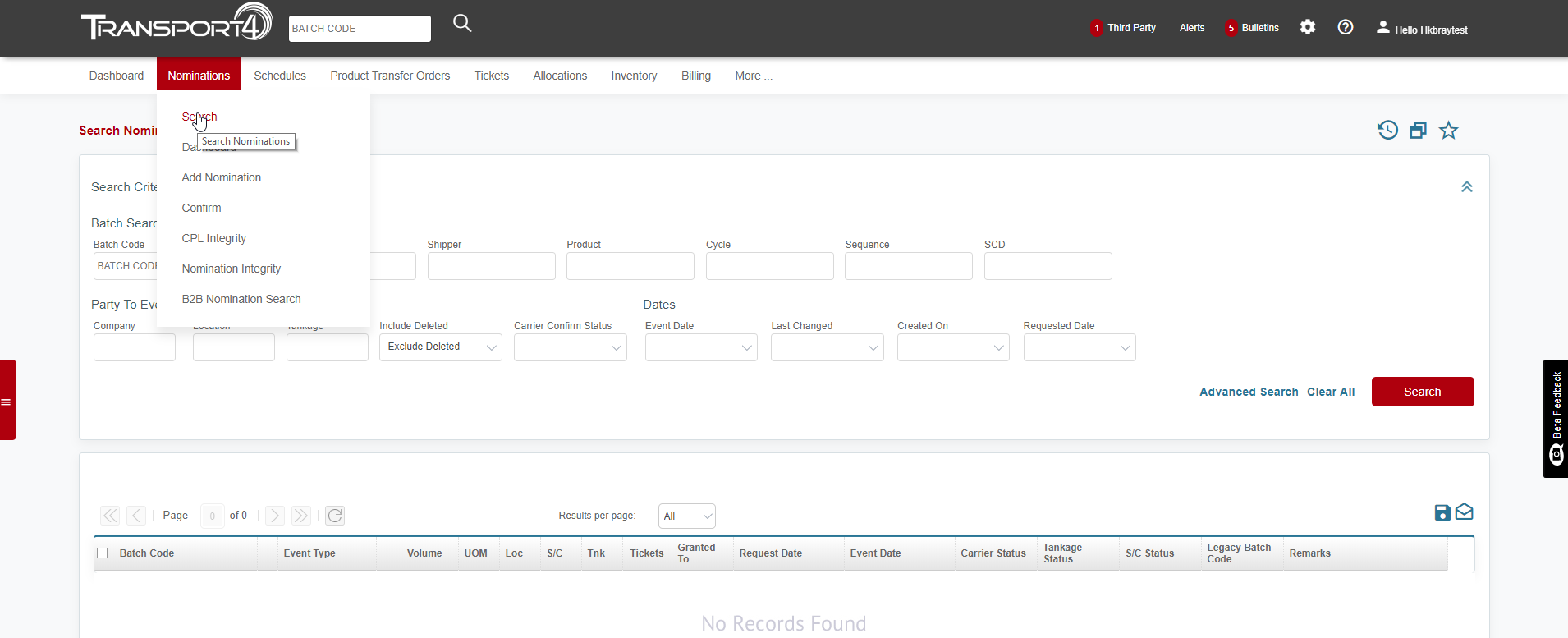
The Nomination Search screen is used to search previously entered Nominations. There are two search options; Basic (default) or Advanced Search.
- Enter the complete Batch Code or as much information as you have and click “Search”.
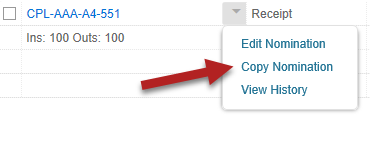
- Once you locate your Batch, click the drop-down arrow to View Batch Details, History, Edit Nomination, and Copy Nomination.
- The fields autocomplete when you input information and use the type ahead functionality.
Advanced Nomination Search
The Advanced Nomination Search feature adds more criteria options to narrow down your search results.
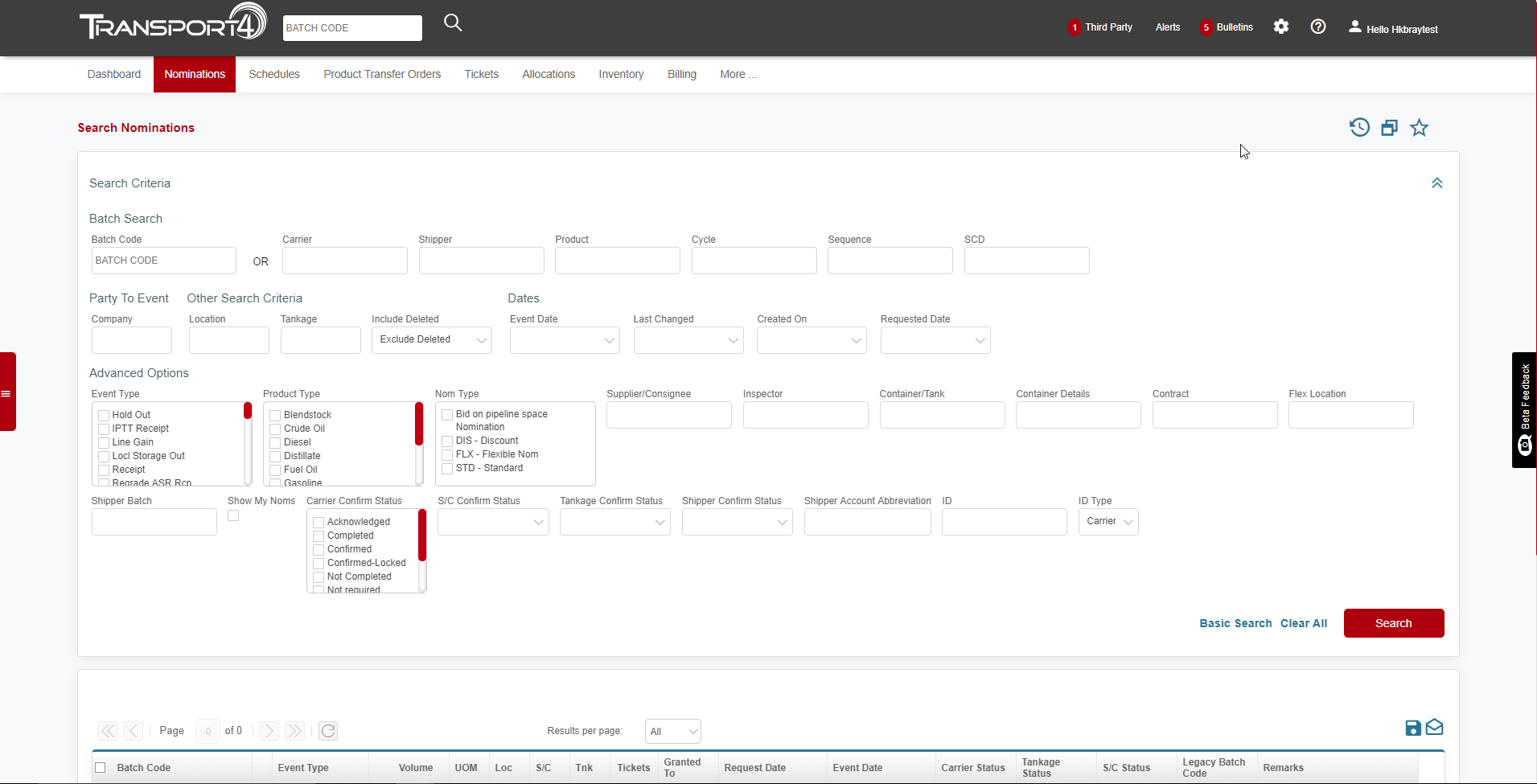
Advanced Options Include:
- Event Type
- Product Type
- Supplier/Consignee
- Tankage
- Various confirmation statuses
Nominations Entry
Nominations can be edited, copied, or created from scratch.
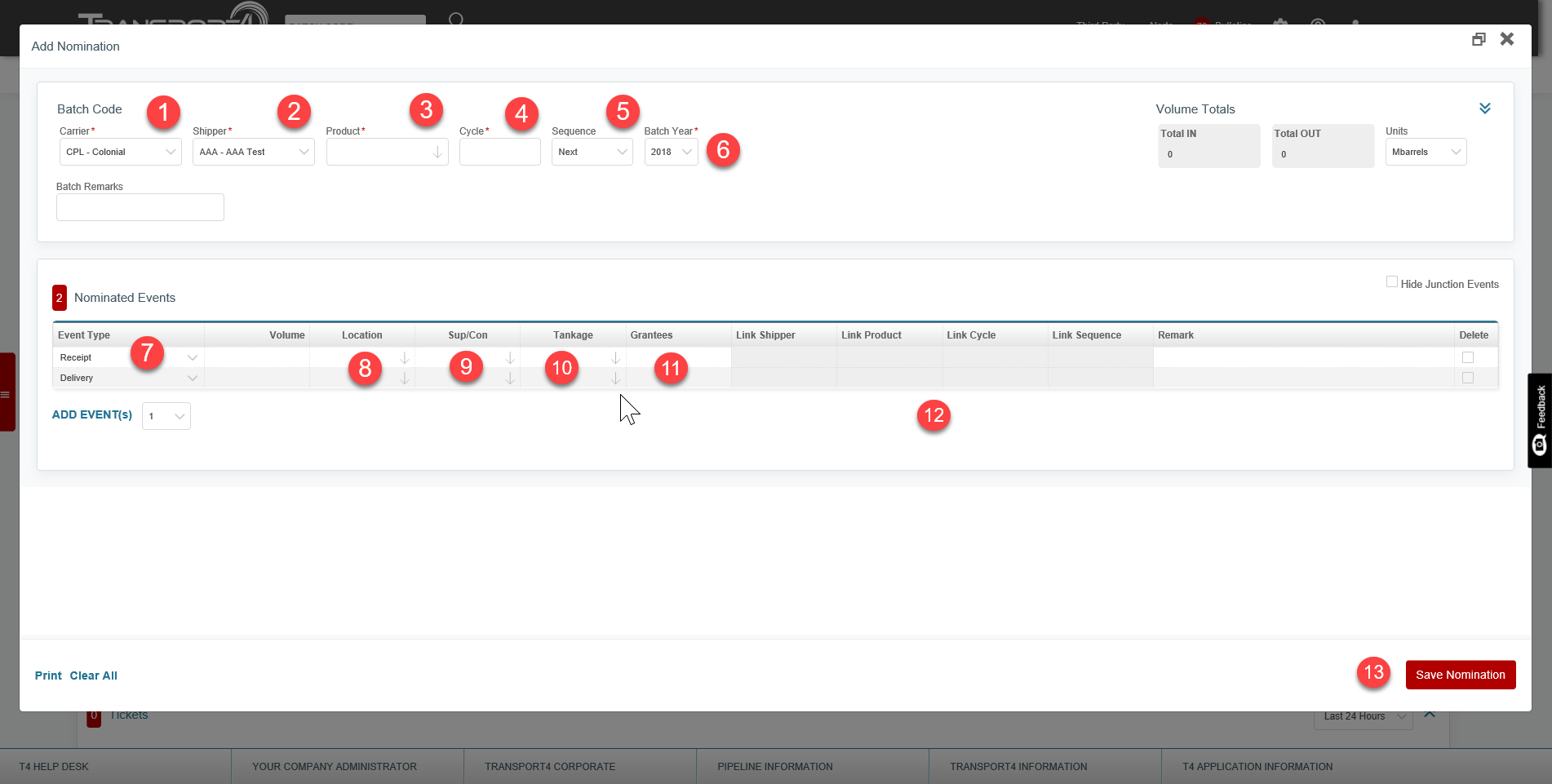
Create a New Nomination
- Select the desired carrier for the nomination you are submitting.*It is important that you select the carrier first because if it is changed at any time, all information will be lost.*
- Select the desired shipper code from the drop-down list.
- Enter the Product code or description in the “Product” field. The auto-populate feature will only display product that is valid for the selected carrier.
- Enter the “Cycle” information.
- Choose the Sequence using the options in the drop-down menu.
- Add the “SCD” – Specific Carrier Designation (not required for all carriers)
- SCD (Special Carrier Designation) means different things to different carriers. T4 provides a list of SCD codes for each carrier, and it is your responsibility to review the carrier documentation and be familiar with what their codes represent.
- Use the drop-down to select the event type.
- Enter the location associated with the event. The auto-populate feature will only display valid locations for the Carrier/SCD/Event Type combination.
- Enter the Supplier/Consignee for the event. If left blank, the S/C will default to the shipper.
- Enter the Tankage. The auto-populate feature will only display Tankage that is valid for the associated location.
- Third Party Grants can be made directly from the Nomination using the “Grantees” field. Enter the desired party code separated by commas if more than one is to be added. The event will then be automatically granted.
- Link sections are specific to different carriers: ie. Bengal and Colonial and certain PTO event types such as (IPTT).
- Click "Save Nomination".
Edit Nomination
- Enter the complete Batch Code or as much information as you have and click “Search”. If you do not know the complete Batch Code, enter at least 1 variable and the Top 25 Results will be returned.
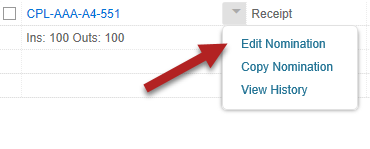
- If you already know the Batch Code, click the drop-down arrow and select “Edit Nomination”. Using the drop-down arrow to edit the Nomination or clicking “Edit” on the Batch Details page will ultimately take you to the Nomination Change page.
- Once you have revised the Nomination, please click “Save Nomination.”
Copy Nomination
- You will use the same drop down box you used to edit a Nomination. In the drop-down window click “Copy Nomination” or you can search the Batch Code and click “Copy”.
- Make any necessary revisions to the Nomination and click “Save Nomination”.
Carrier Specific Information
Colonial/Bengal
- CPL has 72 cycles per year
- Nominations should not be entered greater than 60 days in the future
- SCD is not required
- For Product Regrades and PTOs, the Linked Batch should be added in the associated “Linked” fields.
Lone Star (LST)/King Ranch (KRP)/King Transfer (KRT)
- The Nomination does not have to be balanced
- There is only 1 valid SCD per carrier
- The event date is blank until it is ticketed.
Buckeye/West Shore
- A Requested Date is required for all Receipts. To find the requested date for the Product/SCD combination click “Cycle” for the monthly cycle calendar. Cycle and Requested Date will automatically be added to the nomination.
- The SCD field signifies the sub-system the product is moving across. Cross-SCD batches are allowed from the M to the H system. T4 will automatically create the individual batches scheduled and managed separately.
Enterprise Products (TEP – TEPPCO)
- Sequence - For the “Sequence” field, enter “A” for the front 5 days of a cycle and “B” for the back 5 days of a cycle.
- There are 36 cycles per year. Each cycle is divided into two five-day increments, front, and back.
- SCD – Typically, “10” is used for the first nomination of a batch. If a shipper needs an additional batch in the front or back of a cycle, increments from 10 to 20. Available values include “01” to “99”.
Explorer Pipeline
- Explorer has 72 cycles per year. Each Cycle is 5 days long.
- SCD is the Origin Facility for the Receipt location.
- Only one receipt is allowed per batch
- Distillates are shipped on EVEN Cycles and Jet (Kerosene) is shipped on ODD cycles.
- Gasoline and Diluent are shipped on all cycles.
Sunoco Logistics (SPL-Refined Products)/Inland Pipeline
- A Requested Date is required for all Receipt Events. If the Requested Date entered falls outside the limits of the cycle, an error message will appear instructing you of valid requested dates.
- The SCD field signifies the sub-system the product is moving across. A batch cannot cross SCDs.
Sunoco Logistics (SLW – Crude)
- Barrels are nominated as Barrels per Day
- Cycle represents the month (1 = January, 6= June, 12 = December, etc.)
- The SCD field signifies the sub-system the product is moving across. A batch cannot cross SCDs.
CPL Integrity
The CPL Integrity tab is specific to Colonial Pipeline
EXP Integrity
The EXP Integrity tab is specific to Explorer Pipeline
Comments
0 comments
Please sign in to leave a comment.