
Ticket Search and Results
The ticket search function has both basic and advanced search options. The fields for the basic ticket search are the fields that are most often used to find tickets. The advanced search feature has additional search options.
What is a Ticket
There are many different types of tickets.
- Carrier
- Facility
- Flow Wt Avg
- Gain Loss
- IPTT
- Mass
- Memo
- Meter
- Net Barrel
- Operational
- PTO
- Rail Car
- Revenue
- Tank
- Truck
- Vessel
Basic Ticket Inquiry
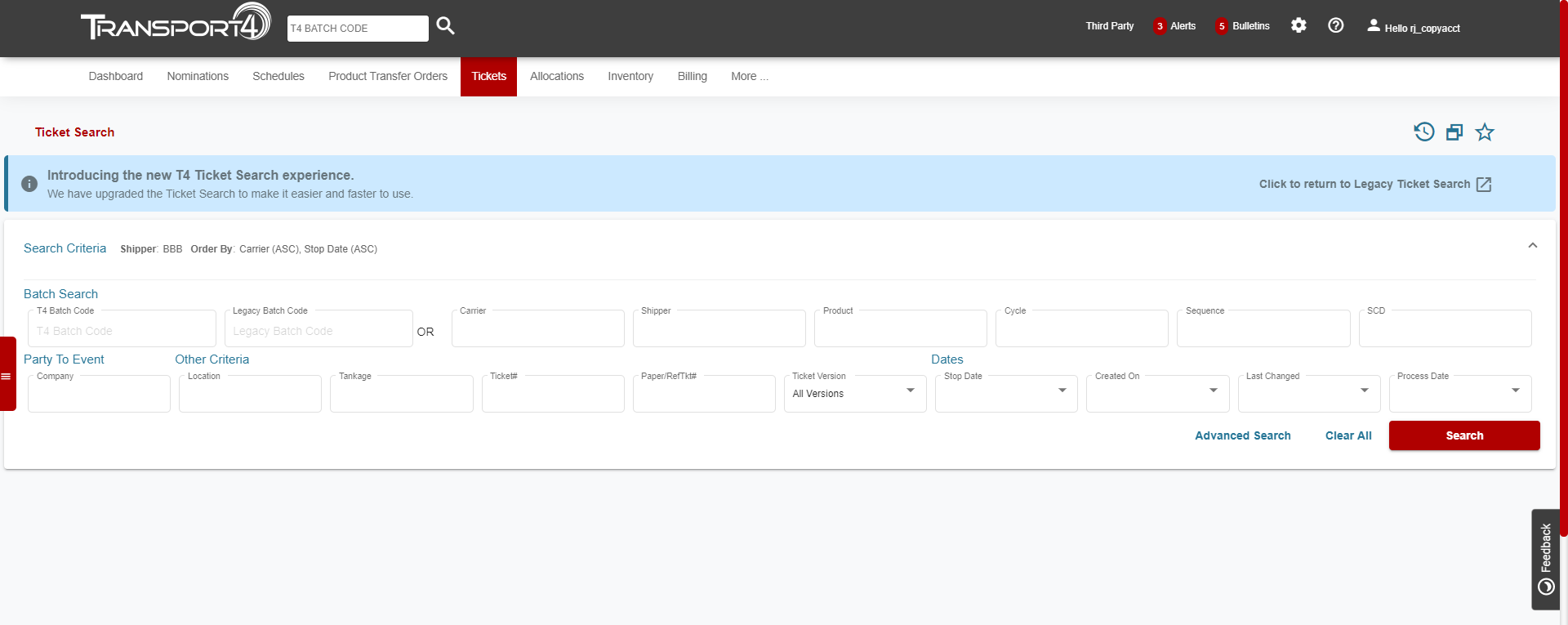
You can enter the entire batch code or just the pieces of the batch code that you have. If you are not exactly sure what you are looking for, it is better to start with a broad search and narrow down from there. You enter in the criteria that you have and click “Search”. Your results will be displayed in the short form.
Enter the information that you have and click “Search”. If the results are too broad, click in the “Search Criteria” area at the top of the screen. This will open the search field with the same information that you had previously entered. 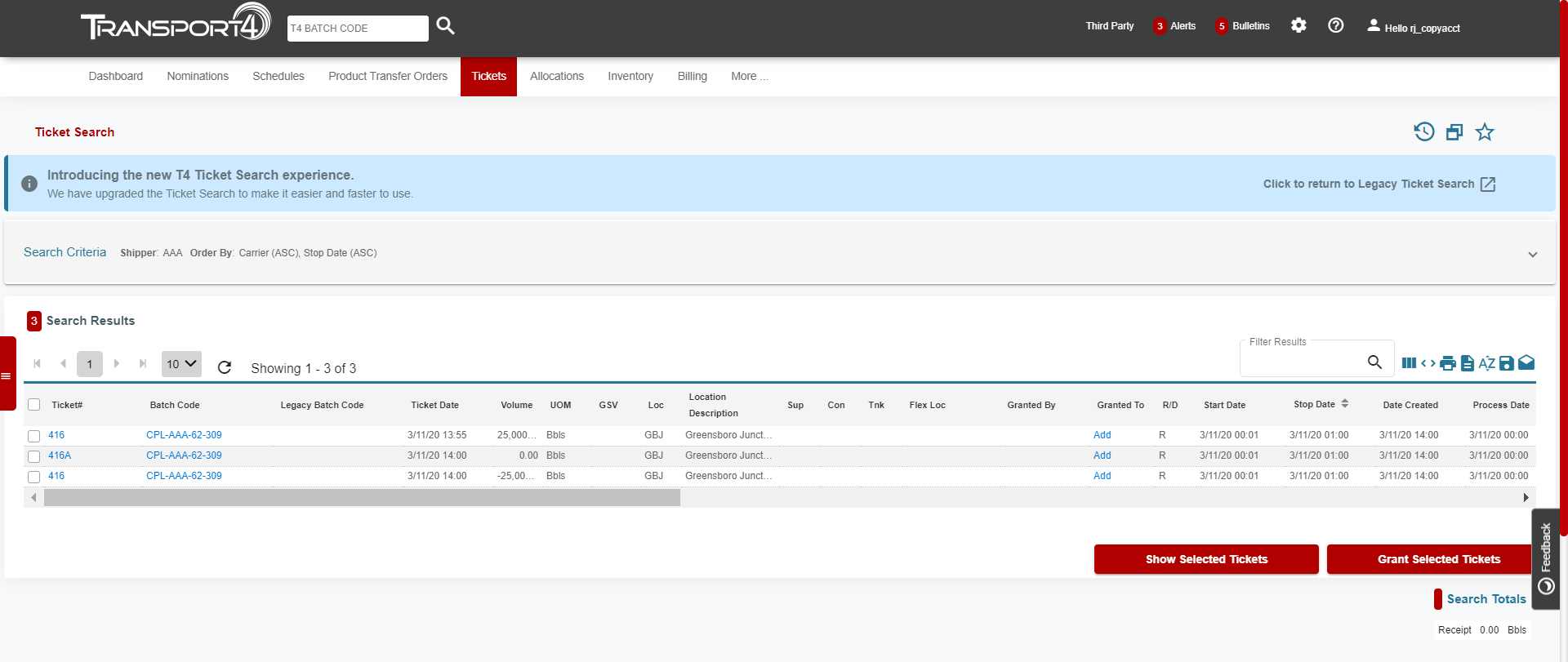
Advanced Ticket Inquiry

The advanced ticket search feature adds more options to find the ticket that you are looking for. You can search by Product Type, Ticket Type, Event Type, Line, Supplier/Consignee, Tankage, Shipper Account, Tank Car #, and To Shipper.
You have several options with your search results. You can print the grid, export the results to a CSV or text, sort results by multiple columns, save the search criteria, or set push options.

- Select Columns – Click to Add/Remove columns and drag/drop to move columns.
- Expand Column Width – Click to expand the width of your columns.
-
Print – Print to any available printer including saving as a PDF.
-
Export to CSV– Export as a CSV file. The results are limited to 100 and will include the data and headers.
-
Sort Results by Multiple Columns – If you are returning a lot of data, you can sort by multiple columns.
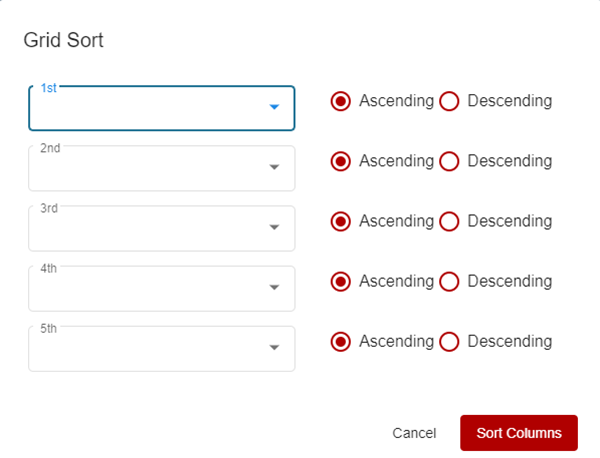
6. Save Search Criteria – If you search the same information on a regular basis you can save the search criteria so that it is easily accessible.
-
Click the “Save” button and name the search.
-
The search will be saved in the drawer and can be accessed from any screen.
7. Set Push Options – To set a push relating to this search, click the “Push Options” button and add the push as needed.
Filter Results Box – Filter down search results in this box without having to change your search criteria.
Long-Form Search Results
The long-form ticket shows the actual ticket that was created. The long-form (sometimes called the ticket image) includes additional information, such as a meter or measurement specifications, that is not available in the short form.
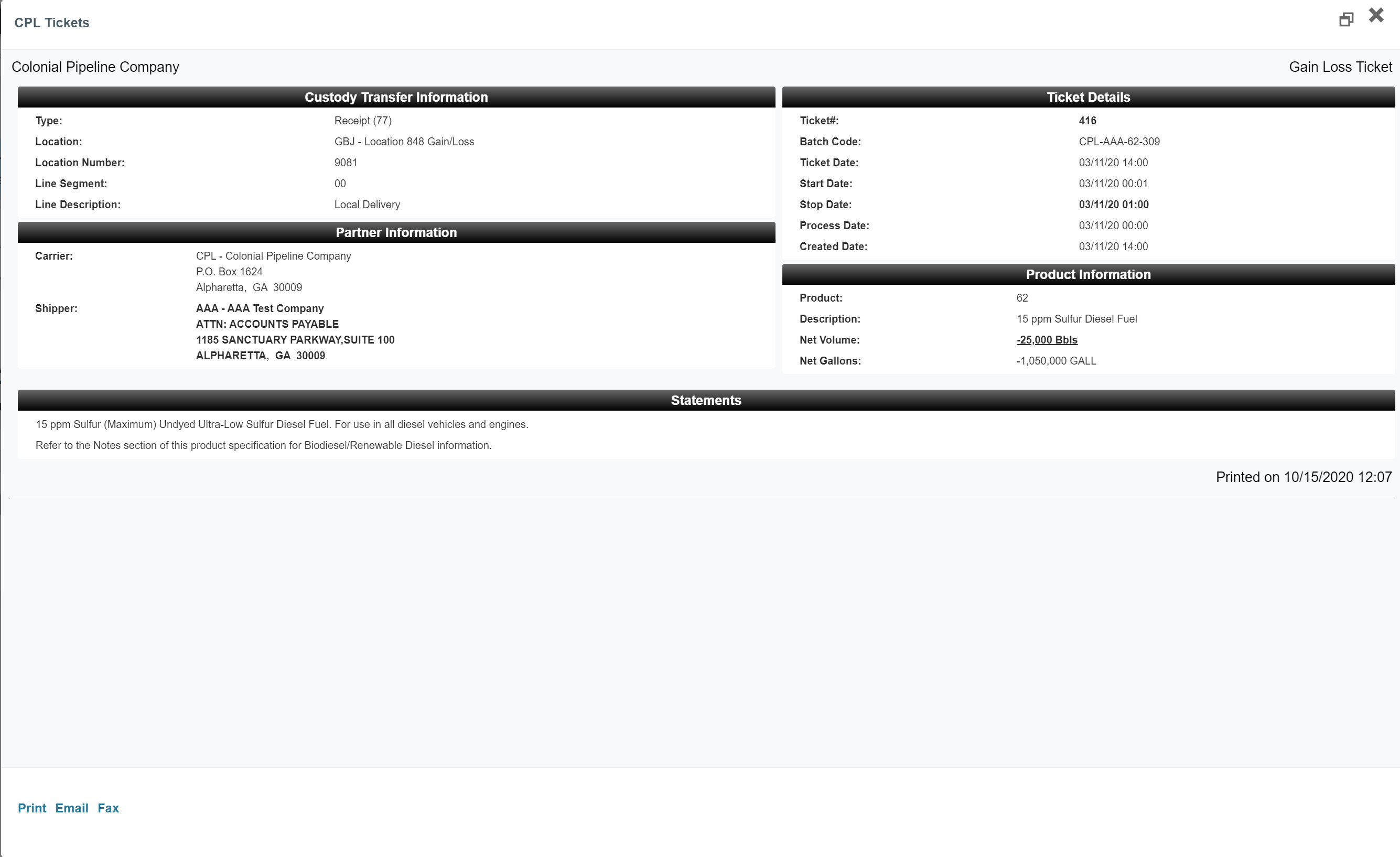
From the long-form ticket, you can grant a TPT, print the ticket, email the ticket, and fax the ticket.
- Grant TPT (not pictured, at bottom of the ticket)– Click the link to grant to a third party
- Print – Print the ticket to any available printer or save as a PDF.
- Email – Email the ticket as needed.
- Fax – Fax the ticket as needed.
You can choose to view multiple long-form tickets by clicking the button next to the desired ticket and clicking “Show Selected Tickets” at the bottom of the screen.
Comments
0 comments
Please sign in to leave a comment.