
A schedule is published by a carrier and shows the details of a batch event. These details include volume, start date/time, stop date/time, party information, and more.
Selecting “Auto Reports/Push Options” in the cogwheel allows a user to send Schedules automatically as a Push email. Options include either Periodically or when a new schedule is published (Data-driven).
Schedule Search
Schedule Search (Basic)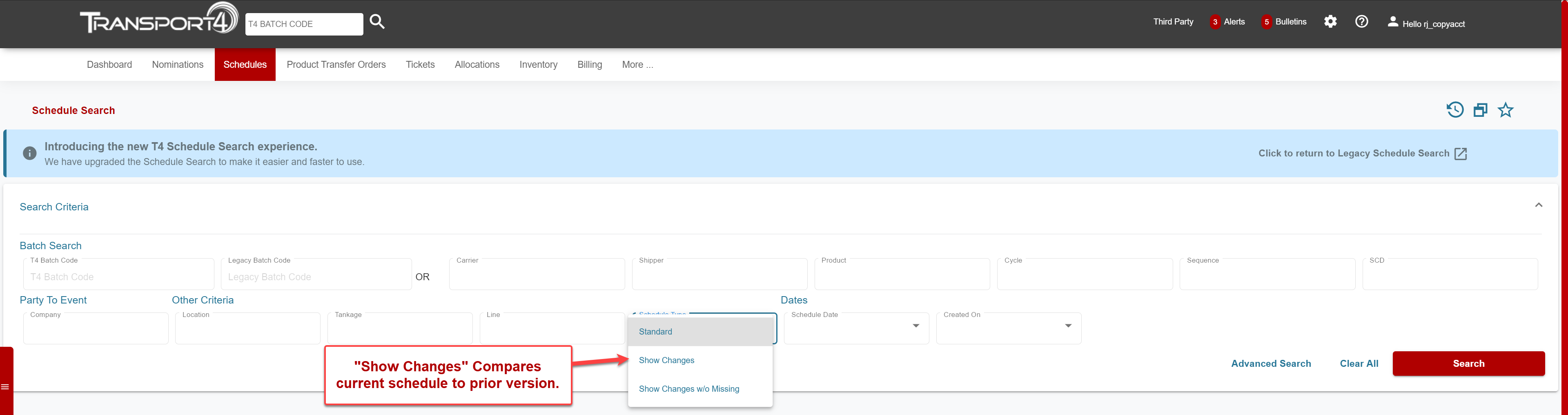
Schedule search has both Basic and Advanced filter options. The fields on the Basic Schedule Inquiry are those fields most often used.
Schedule Search (Advanced)

The Advanced Schedule Inquiry provides many more fields upon which you can inquire. Users can select multiple carriers, product types, and action types.
All text entry fields use the type-ahead function to search both the code and the description. Most of these fields validate across criteria. I.E. Only Colonial Locations will show if CPL is entered as the carrier.
Schedule Results
Schedule Results (Standard)
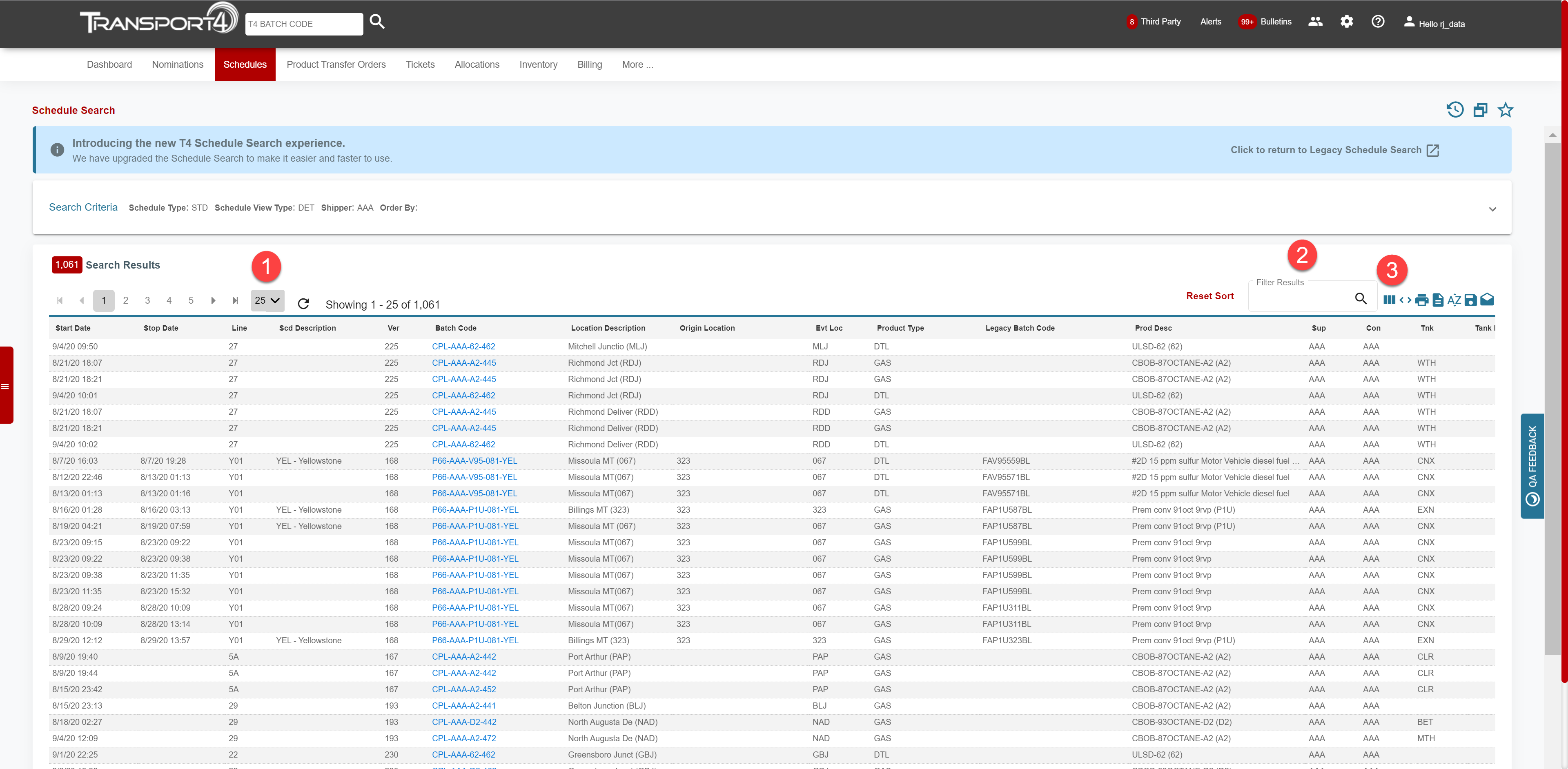
Results appear after executing the search using the “Search” button or automatically if the drawer is set as the search preference.
-
Allows you can choose how many results to see on the screen at any time. By default, search results are shown as 25 per page. If there are multiple pages of results, you can choose “All” from the Results per page drop-down and it will put all of the search results on one page.
The system will remember your preference for “Results per page” for 10, 25, 50, and 100 but not ALL. These preferences need to be changed for each search type (Nom, Schedules, Tickets, etc).
-
Filter Results Box – Filter down search results in this box without having to change your search criteria.
- Select Columns – Click to Add/Remove columns and drag/drop to move columns.
In the upper right corner of the grid, there are several options with your search results. You can select columns, expand column width, print the grid, export the results to a CSV or text, sort results by multiple columns, save the search criteria, or set push options. 
- Select Columns – Click to Add/Remove columns and drag/drop to move columns.
- Expand Column Width – Click to expand the width of your columns.
-
Print – Print to any available printer including saving as a PDF.
-
Export to CSV– Export as a CSV file. The results are limited to 100 and will include the data and headers.
-
Sort Results by Multiple Columns – If you are returning a lot of data, you can sort by multiple columns.
-
Save Search Criteria – If you search the same information on a regular basis you can save the search criteria so that it is easily accessible.
- Click the “Save” button and name the search.
- The search will be saved in the drawer and can be accessed from any screen.
-
Set Push Options – To set a push relating to this search, click the “Push Options” button and add the push as needed.
Filter Results Box – Filter down search results in this box without having to change your search criteria.
Schedule Results (Show Changes)
The Schedule Type of “Show Changes” and “Show changes w/o missing” presents visual differences on the schedule that have changed from the prior version. When these two versions are compared, the resulting scheduled events will show a change Status of either be New, Changed, Missing, or “Blank” (representing no change).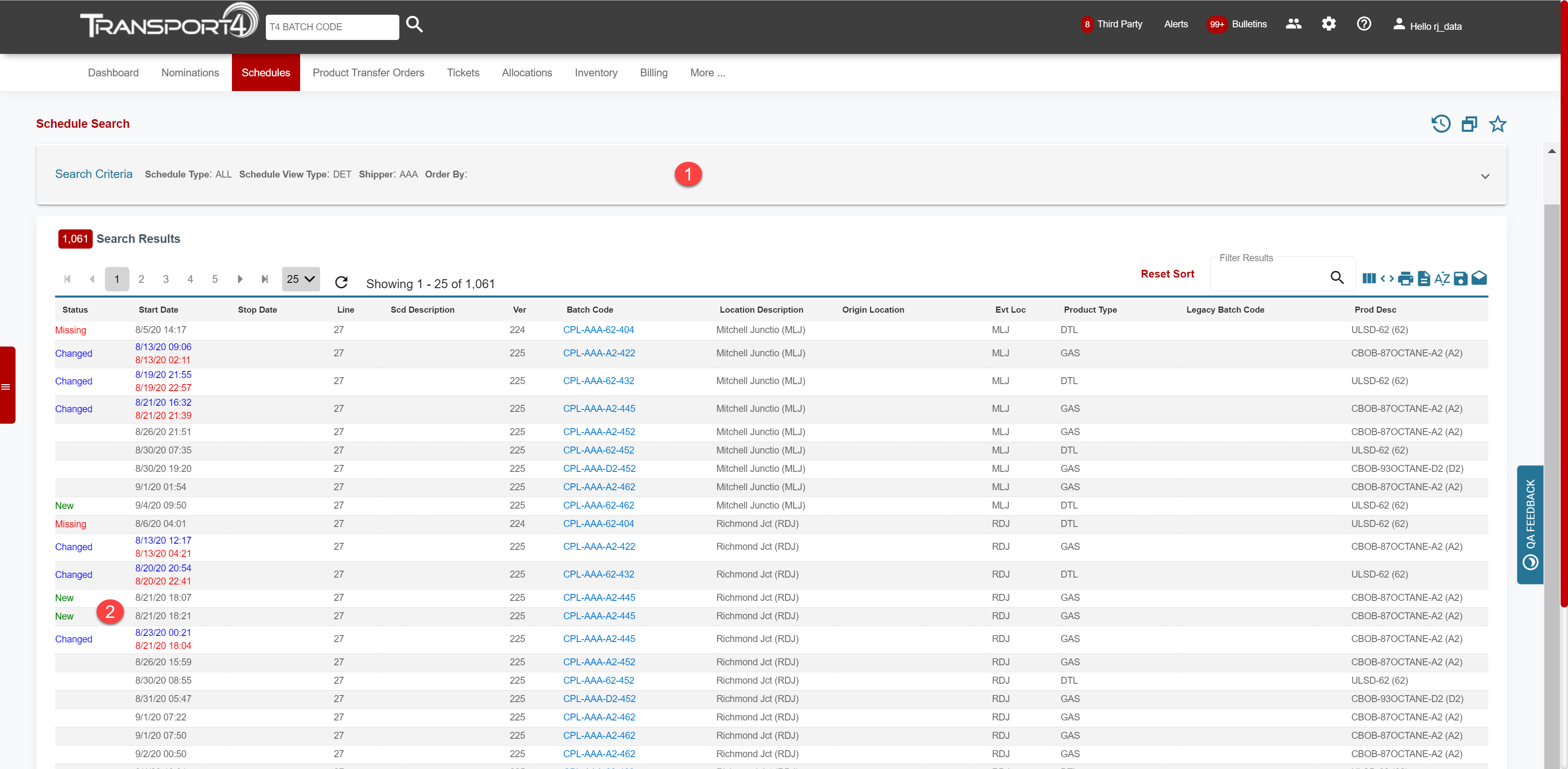

Schedules with changes have 3 primary differences from regular schedules.
-
Enforced Search Criteria
-
Line Segment is required
-
Only one carrier can be selected
-
Company field is invalid
-
-
Changes are color-coded
-
A legend appears at the foot of the grid along with the search totals
Comments
0 comments
Please sign in to leave a comment.